Signing in with a code
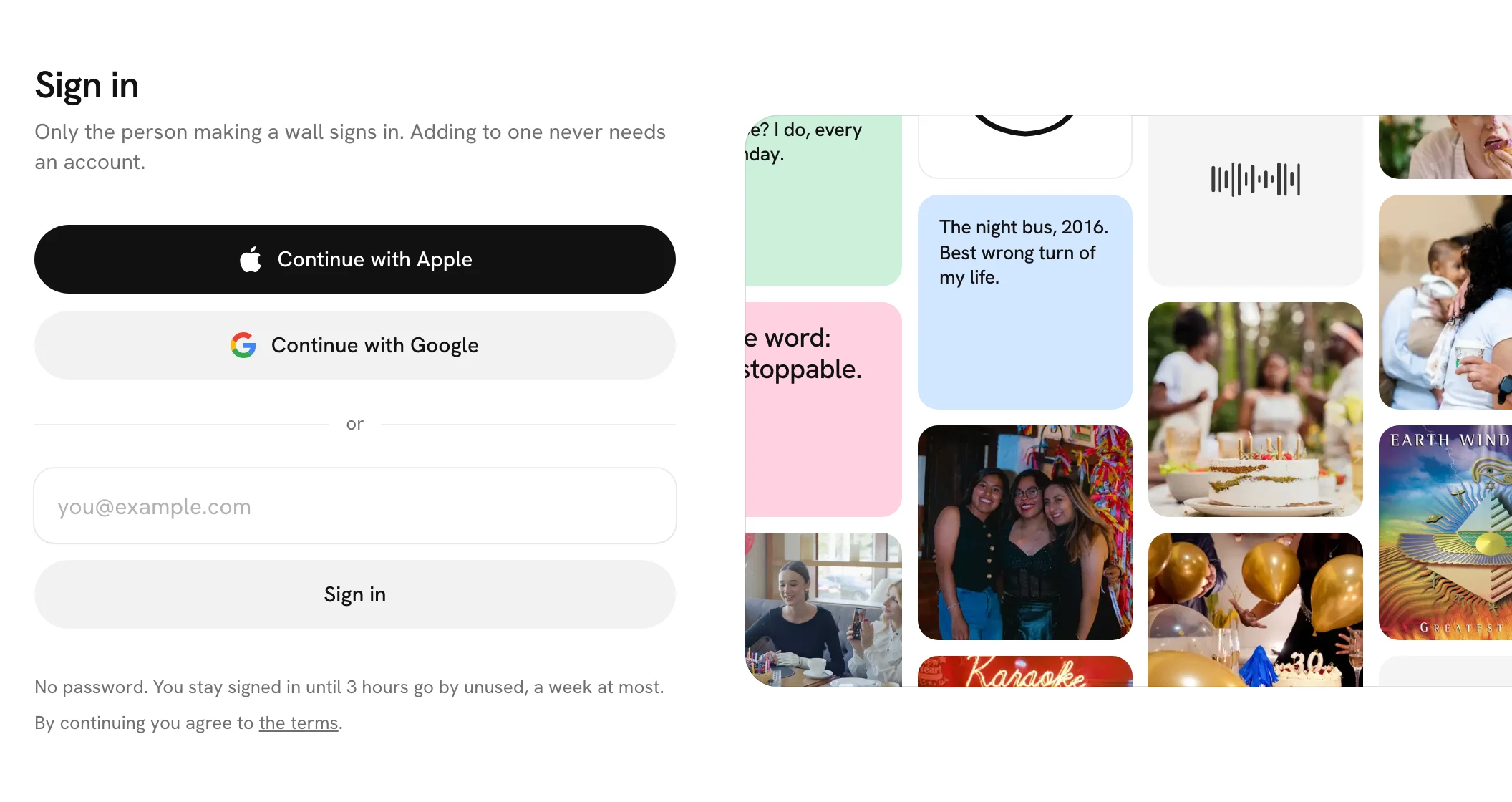
There is no password to remember. Continue with Apple or Google, or type your email and press Sign in, and a six-digit code comes to it. Type the code where you asked for it, and you are in.
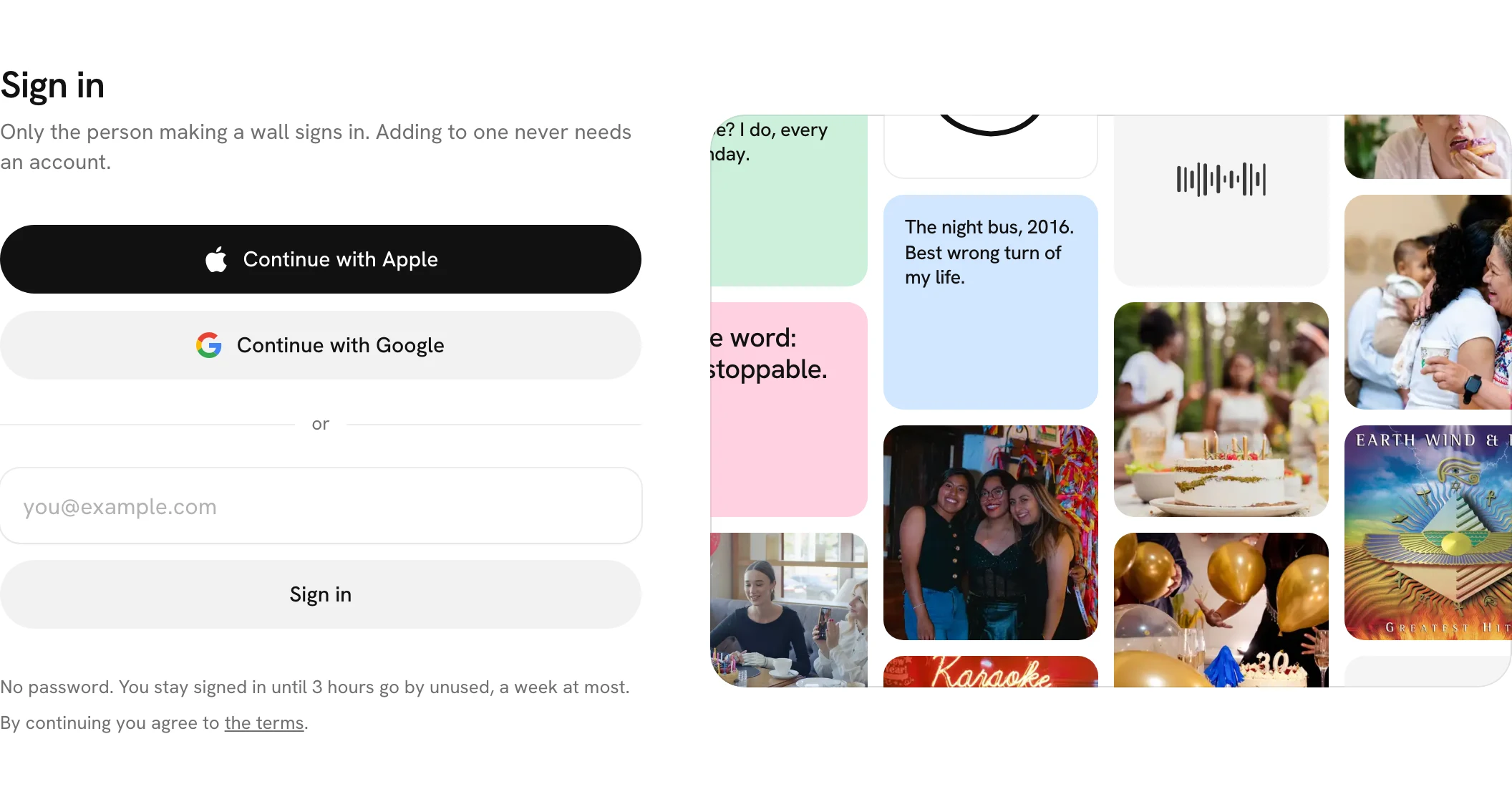
Sign in has a page of its own, at fube.app/signin. On a computer, Sign in is at the top right of the front page. Press fube at the top left of the sign-in page to go back.
1Where is my code
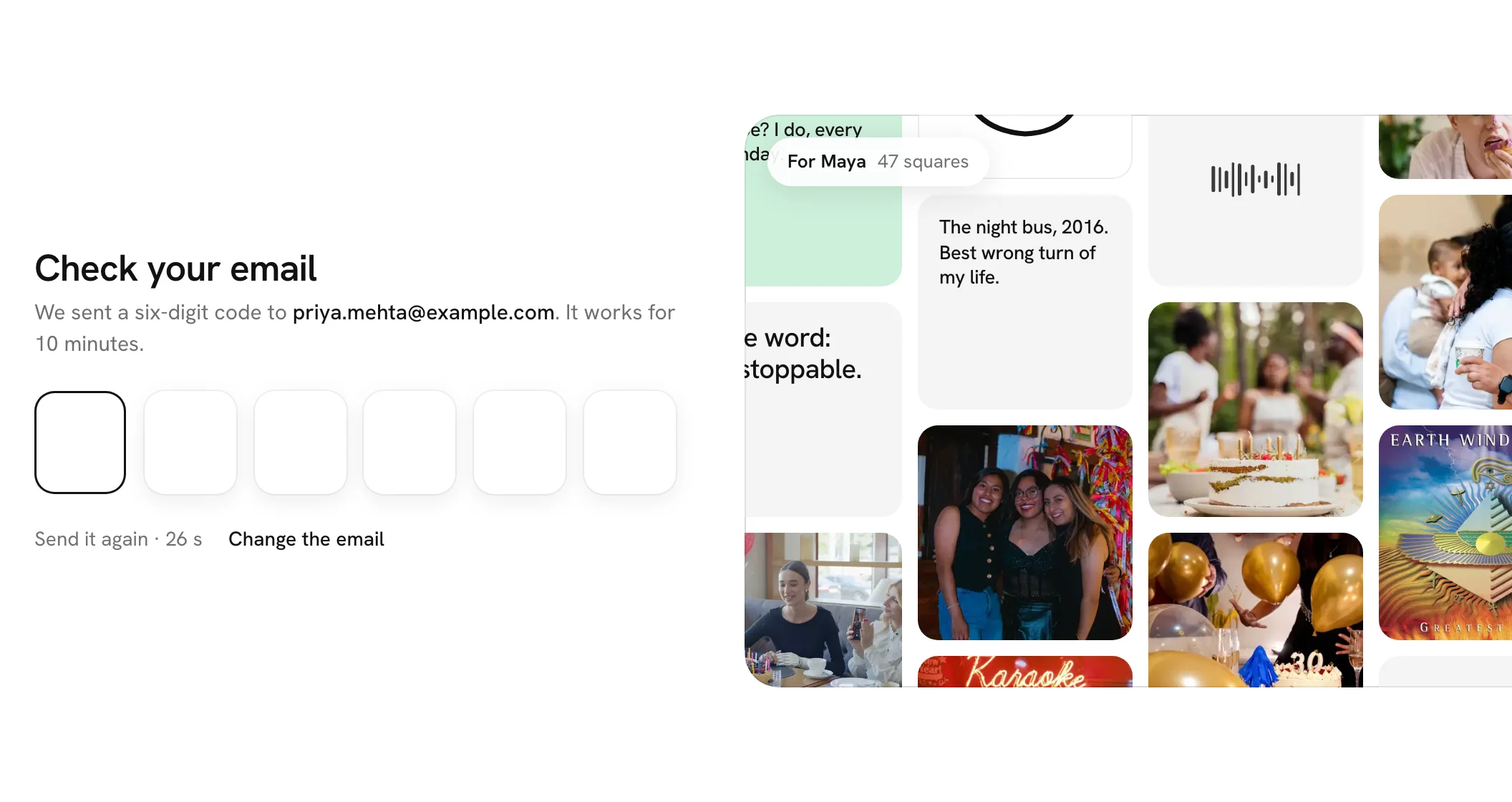
The code comes by email, from Fube, to the address you typed. It usually lands within a few seconds. If it is not there:
- Look in spam or junk, and in any Promotions or Updates tab.
- Check the address on the sign-in screen. A typo sends the code somewhere else; go back and type it again.
- After 30 seconds, press Send it again. A new code comes.
2How long it works
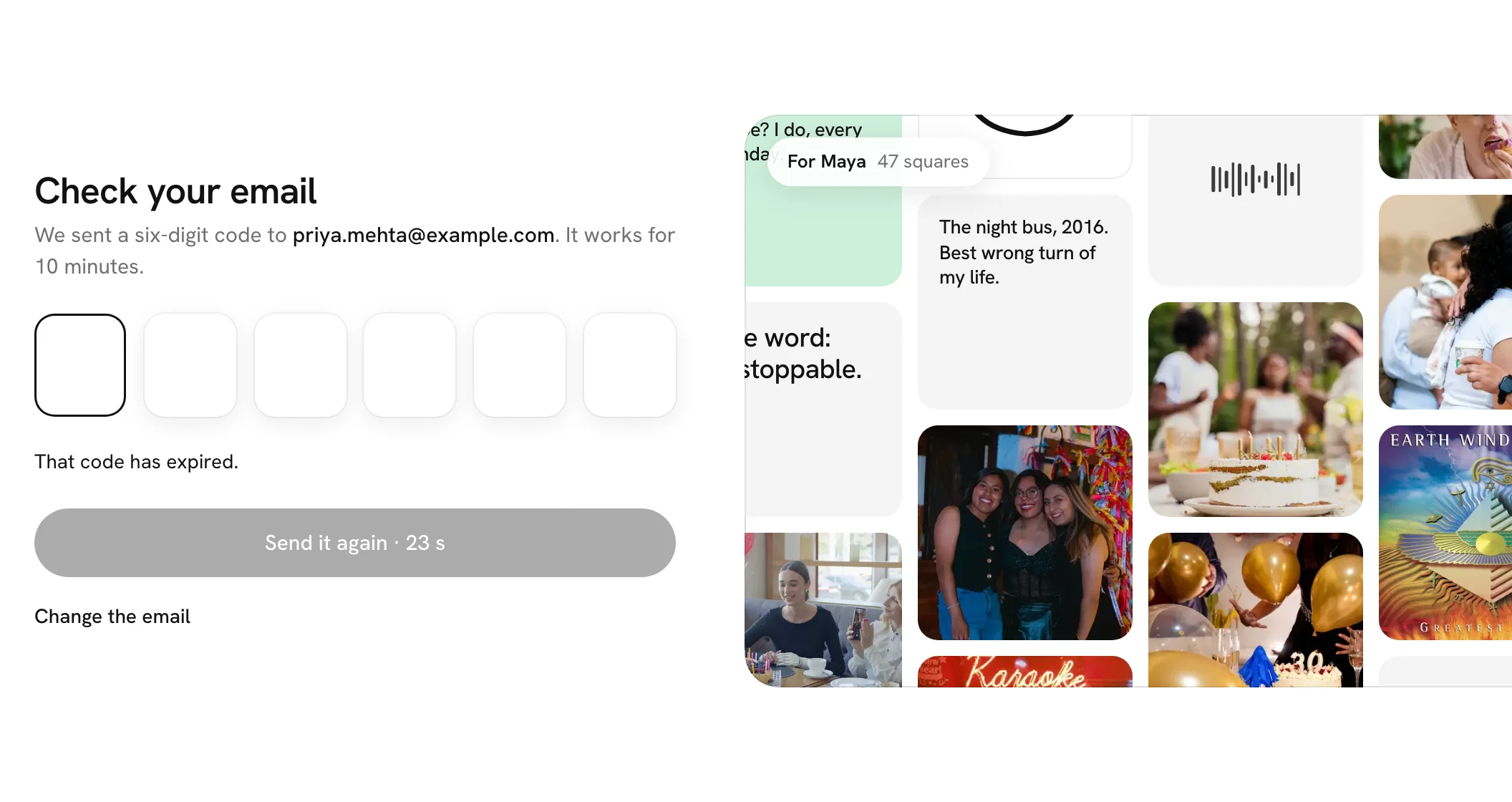
A code works for ten minutes, once. After that, ask for a new one. That way a code someone finds in your inbox later is no use to them.
3Too many tries
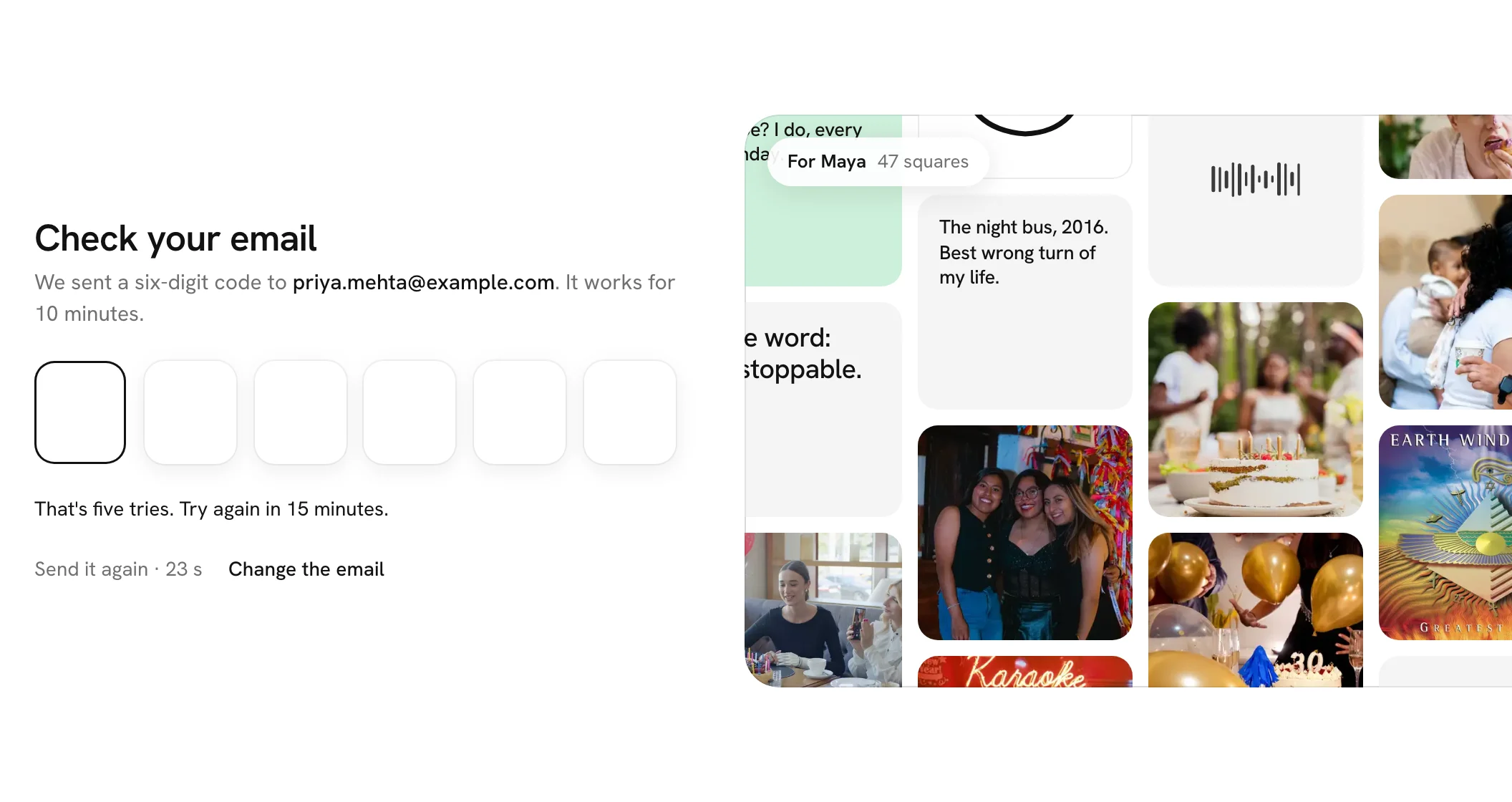
Type a wrong code five times and the screen asks you to wait 15 minutes before trying again. Asking for more than five codes in an hour stops new ones until the hour is up. Both are there to stop someone guessing their way into your account.
4Apple and Google
Continue with Apple and Continue with Google are at the top of the sign-in screen, with no code to wait for. It finds your account by the email Apple or Google gives, so you can switch between them and your email. If you hide your email with Apple, that is a different address, and a separate account.
5The first time
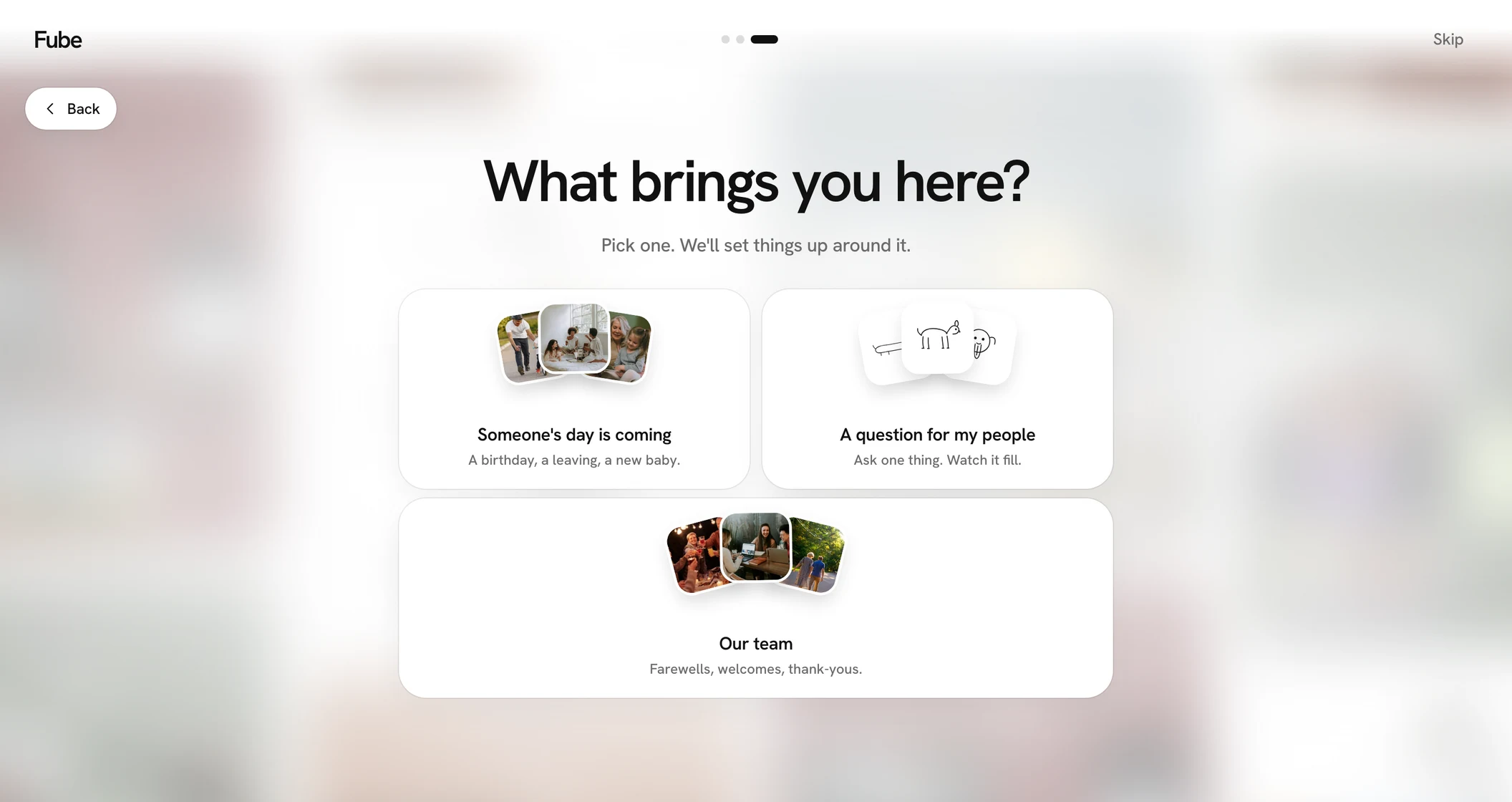
The first time you sign in, Fube welcomes you, one screen at a time: Welcome to Fube., then What should we call you?, then What brings you here? with three choices. The one you pick decides the rest:
- Someone's day is coming asks Whose day is it?: their name, the occasion and when.
- Our team asks Tell us about your team.: its name and how many of you.
- A question for my people asks What do you want to ask? and Where will people find it?
Then Someone's day asks for more days to remember, under Never miss the next one., and Our team under Bring your team’s days. The last screen starts your first wall from what you said, or Go to your walls takes you Home. Back is on every screen after the first, and Skip, at the top, finishes it whenever you like. It comes once. To change what brings you here, go to Settings, then You.
6Staying signed in
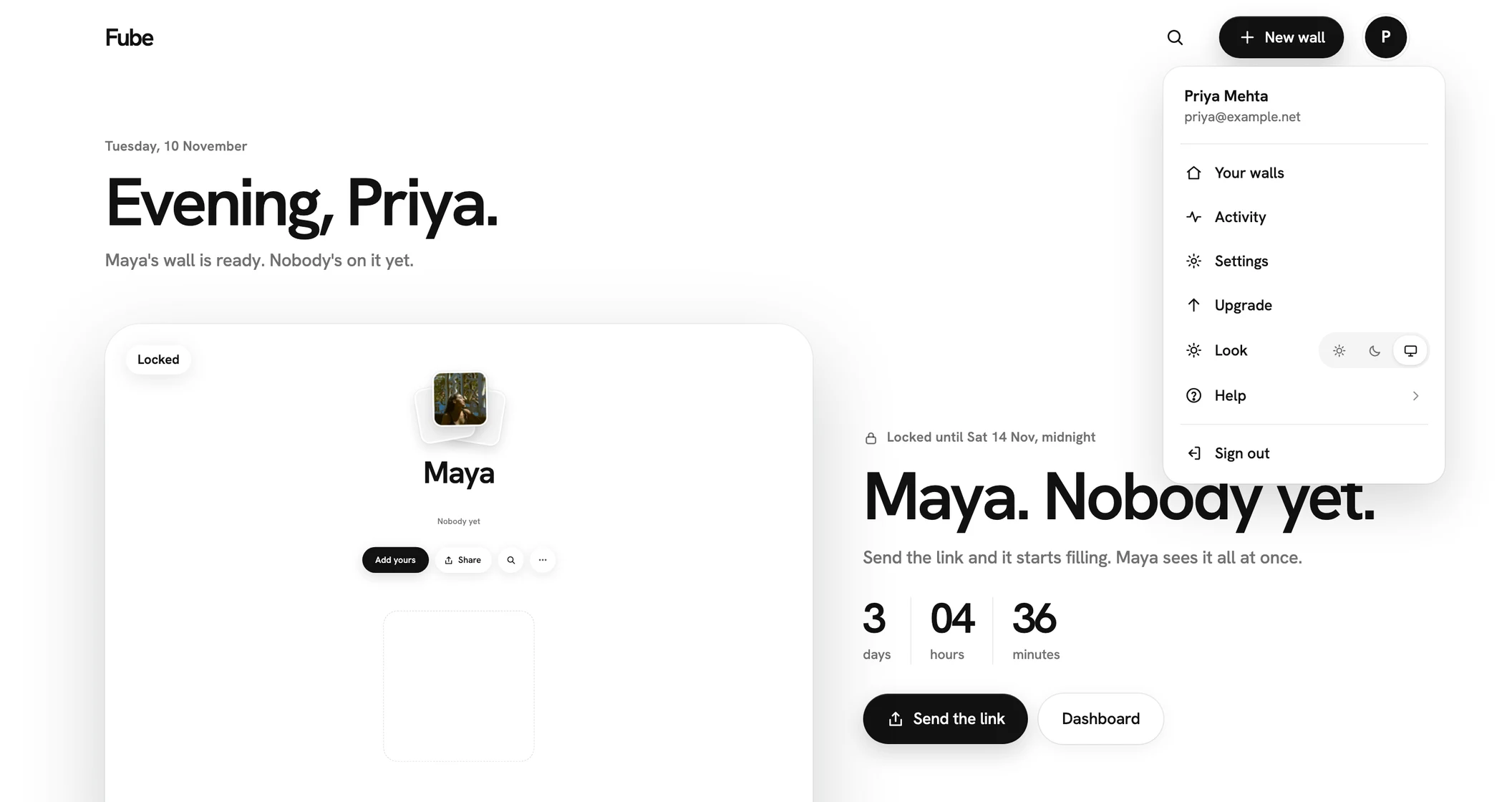
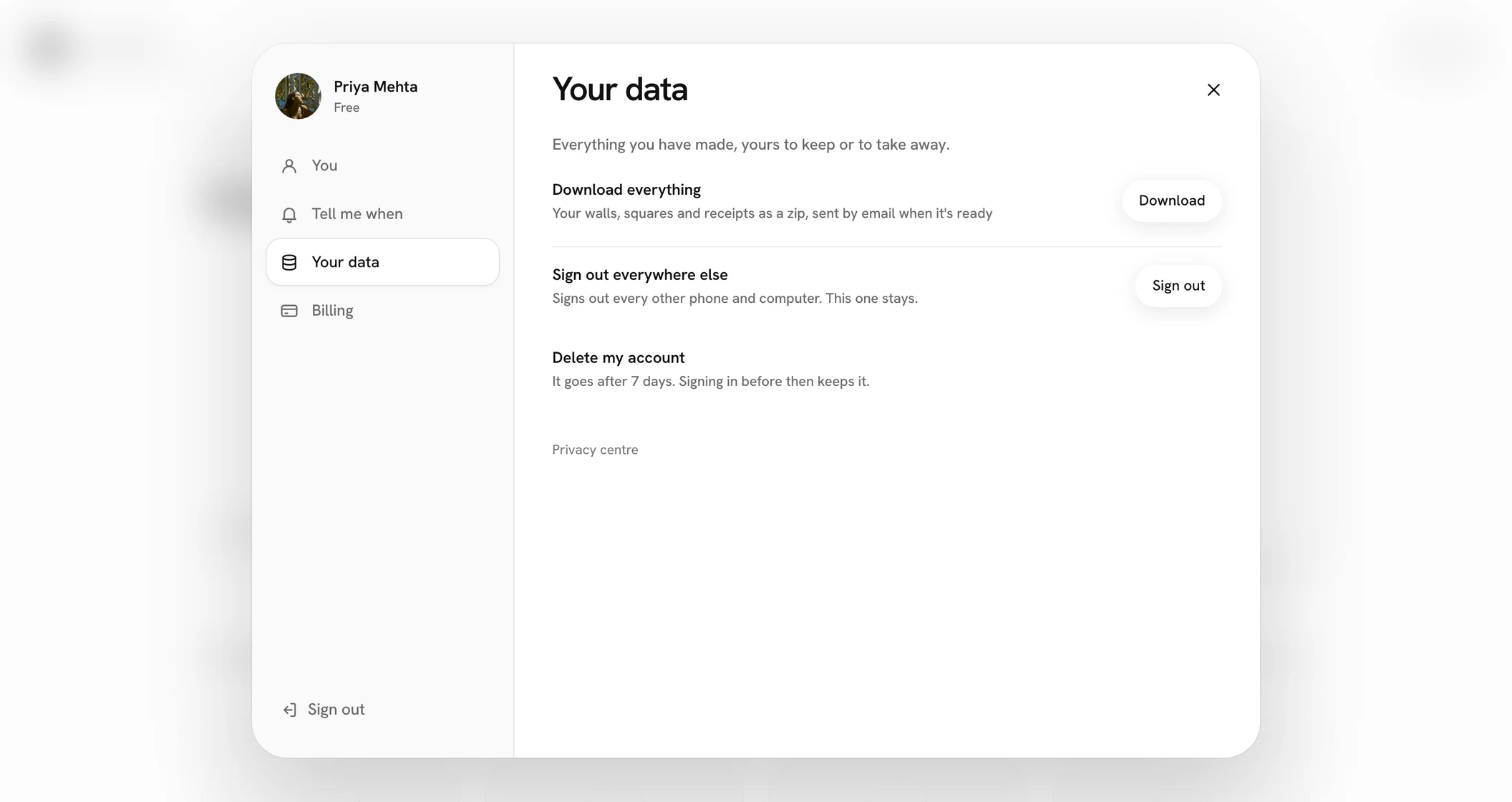
Once you are in, that device stays signed in while you use it. After 3 hours without using Fube, or a week after you signed in, it signs out, and you sign in again with a new code. Sign out in the menu signs it out at once. Once you have a poster, the menu also has Your stickers, above Settings. Each device signs in on its own, and Sign out everywhere else, in Settings under Your data, signs out all the others.