Making a Moment
Two squares on a wall sometimes belong together: the same beach eighteen years apart, a photo and the voice note about it. A Moment pushes two or three of them together, with a line of your own, as one big square. It is the one place on a wall where squares touch. The squares themselves stay where they are.
Starting one
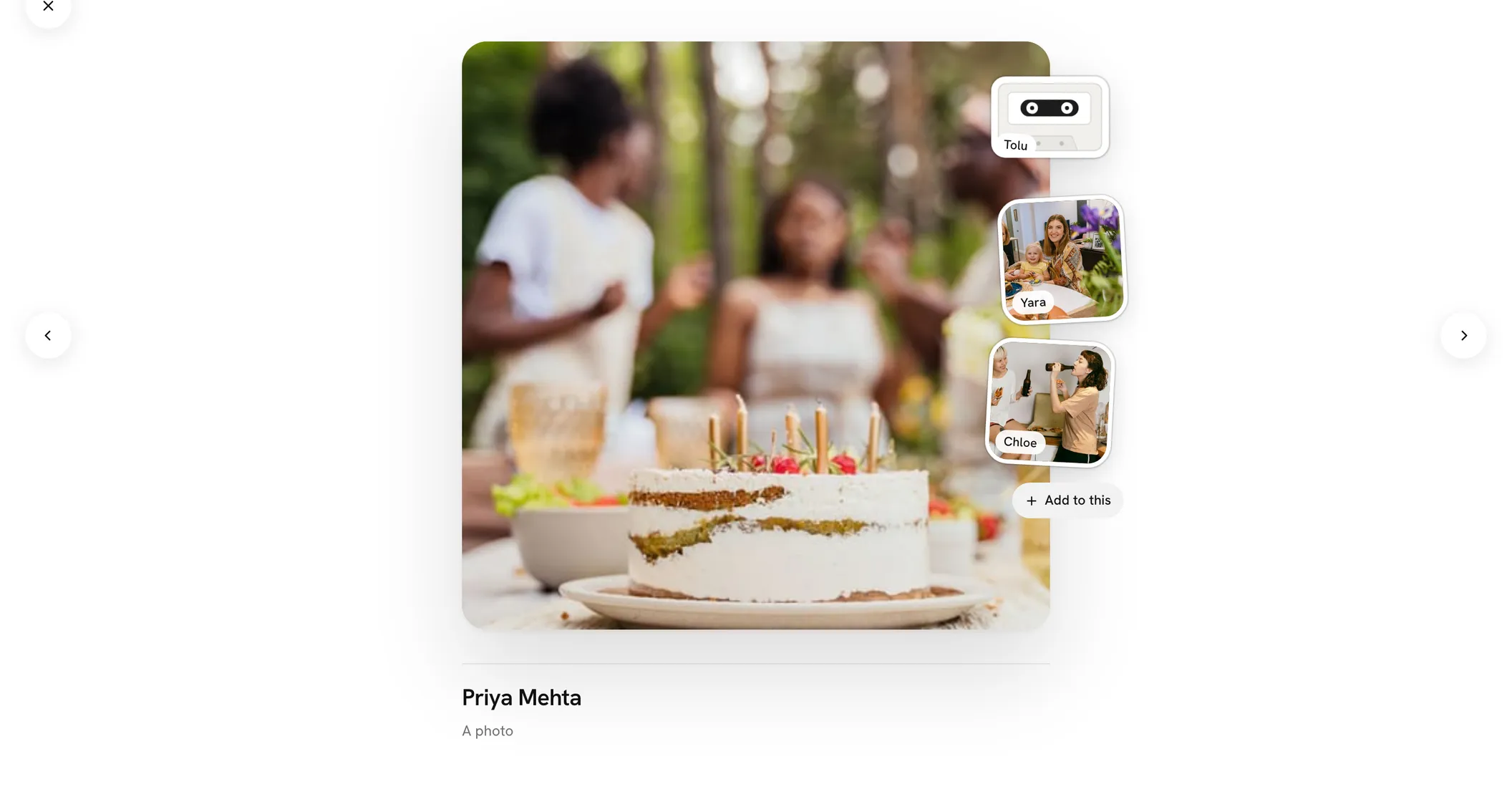
Press the three dots at the top of the wall, then Make a Moment. Or open a square and press Moment, beside or under its name, and it is already picked. You need to be signed in; if you are not, Fube asks you to, then brings you back.
On a wall for someone you can make one once it has opened. Question walls start with them off.
Picking
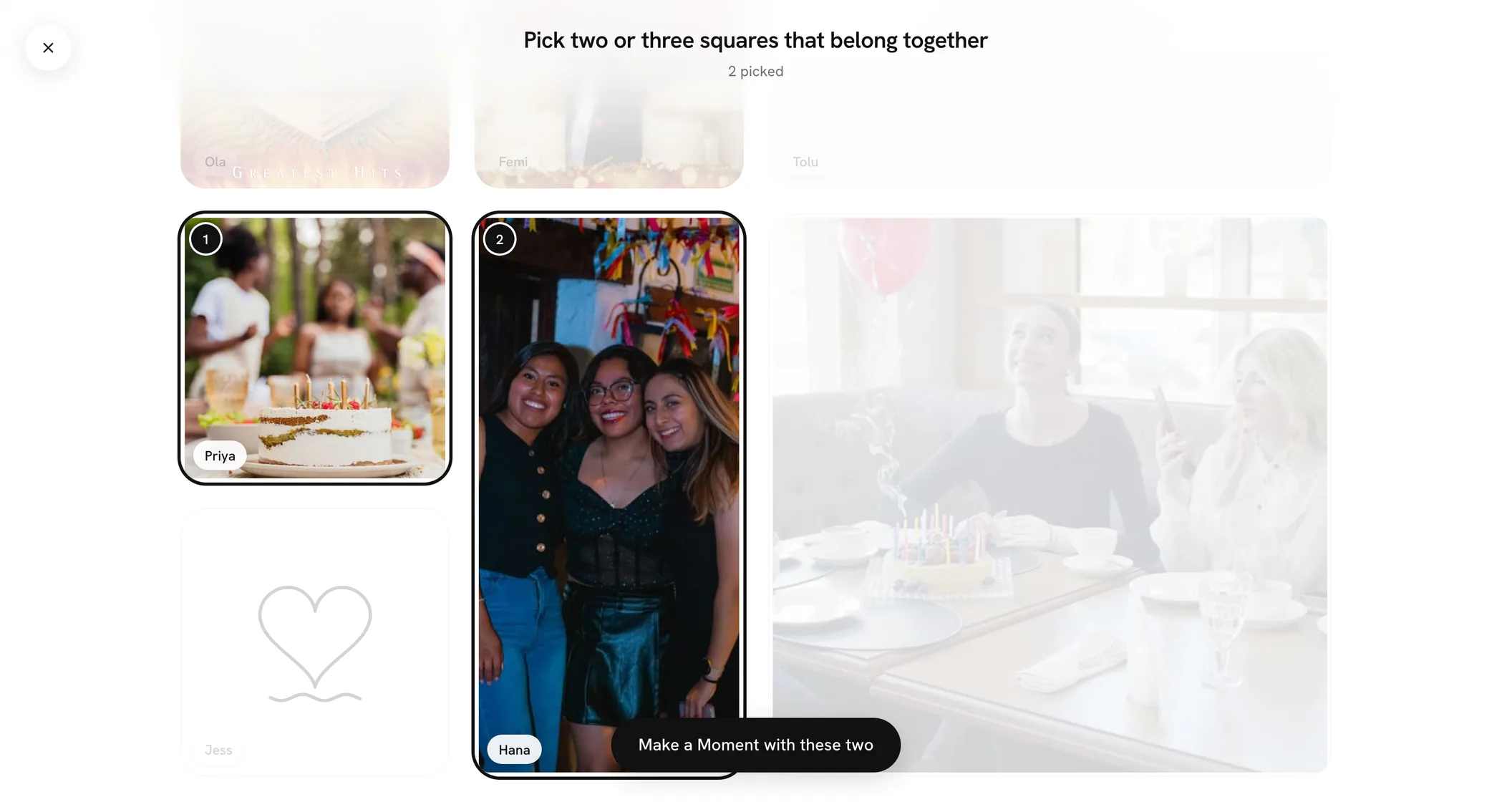
Everything on the wall fades back. The top reads Pick two or three squares that belong together, with how many you have picked under it. You can still scroll.
Tap a square and it comes back to full strength, with a black ring and its number. Tap it again to take it out, and the others renumber. Three is the most. A Moment and the thank-you square cannot be picked.
With two picked, press Make a Moment with these two at the foot, or pick a third first. Close goes back to the wall with nothing kept.
The line and its colour
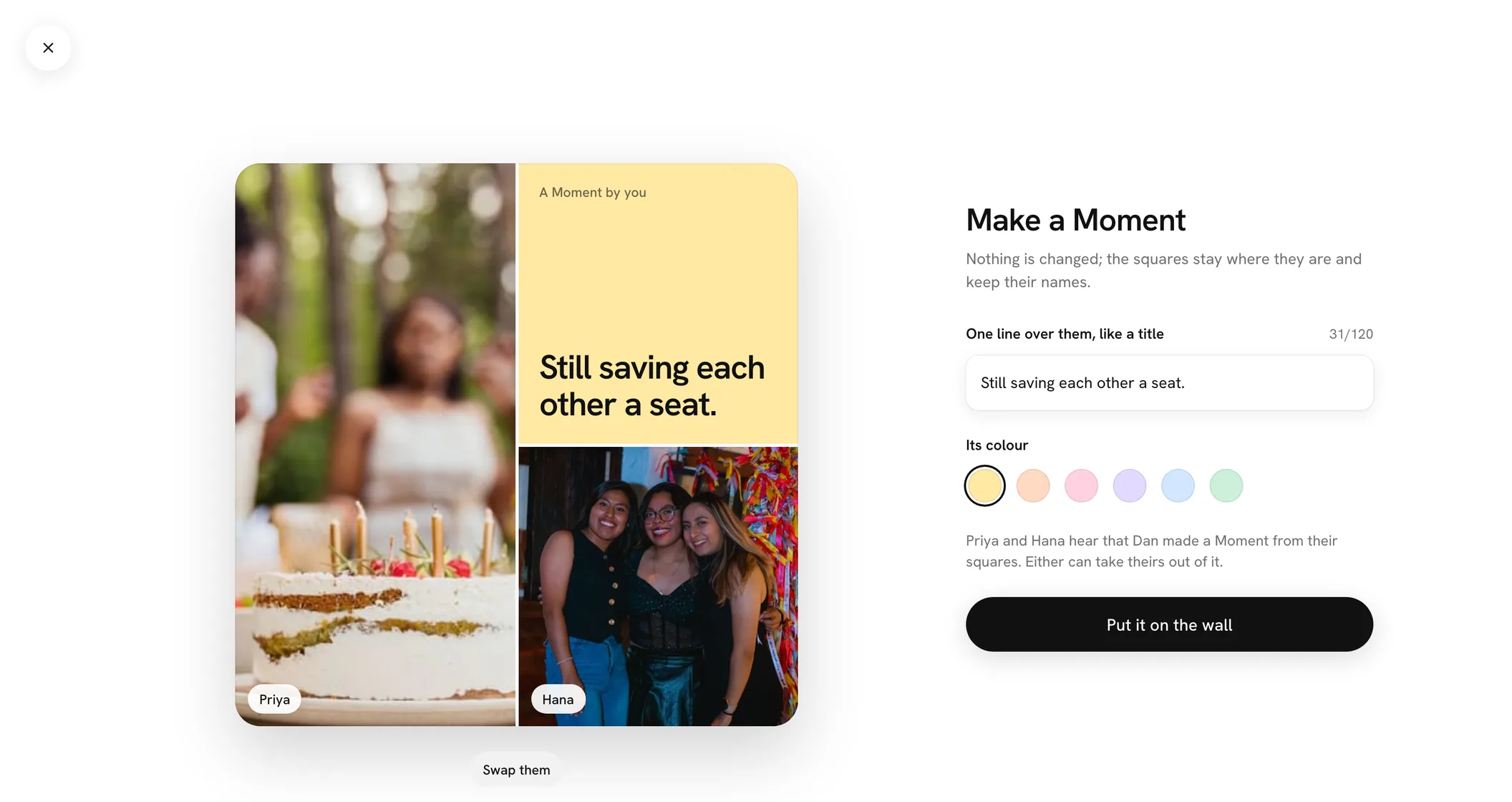
Make a Moment opens as a page of its own, showing your Moment exactly as it will land, with A Moment by you on it.
Under One line over them, like a title, write your line, up to 120 characters. It needs one, and it appears on the Moment as you type, smaller the longer it is.
Under Its colour, choose one of six for the piece your line sits on. Yellow is chosen at first.
With two squares, the first you picked stands tall down the left. If a wide photo crops badly there, press Swap them. With three, each takes a quarter, so there is nothing to swap. Your line always sits top right.
The page says who will hear of it. Then press Put it on the wall. Close goes back to your picks, with your line kept.
On the wall
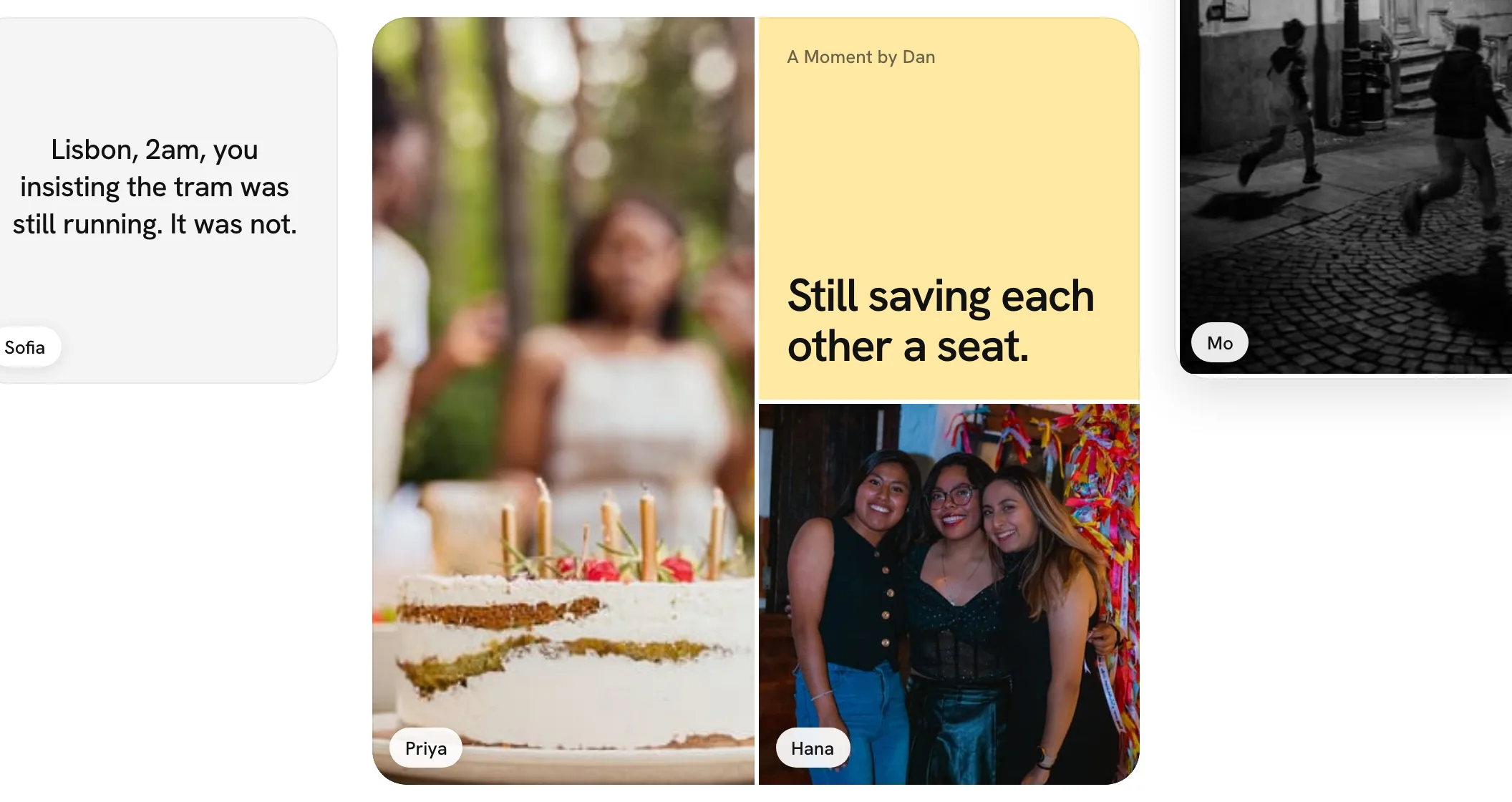
The wall scrolls to the end and your Moment comes together there: its pieces slide in until they touch, then your line rises in. It takes the space of a big square and counts toward the wall's limit, so a full wall takes no more.
Opening one
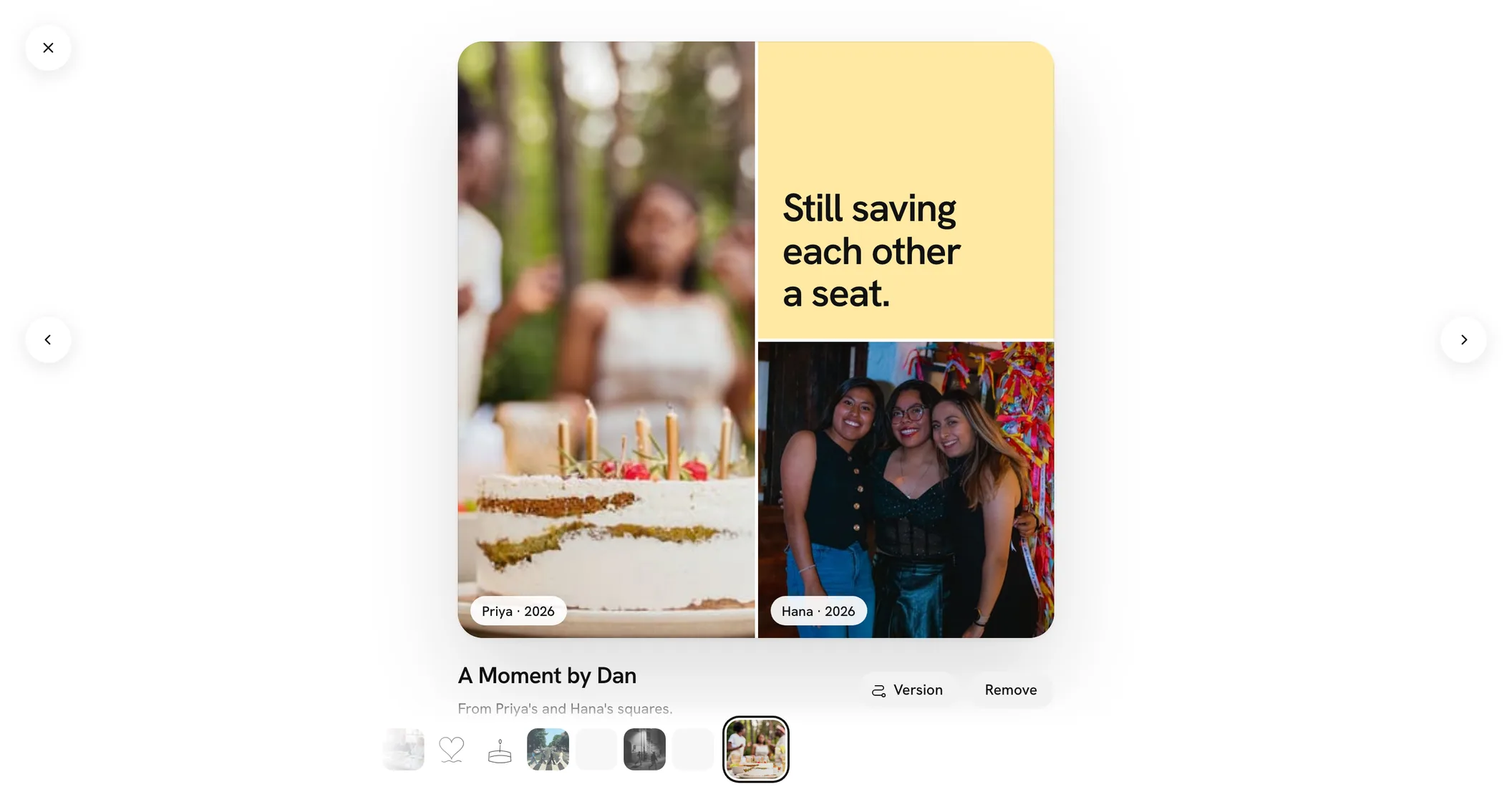
Press it anywhere and it opens in a room of its own, each square with its name and year, and under it who made it from whose squares. Press a square in it and that square opens, as it is on the wall.
The people whose squares you used
Each of them hears, in Activity, if they have an account: [Name] made a Moment from your square. Beside it is Take mine out. Their square leaves the Moment and the rest stay. If only one is left, the Moment comes off the wall and you are told why. There is no mail for Moments.
Removing one
You, or the wall's organiser, can open it and press Remove. The squares in it stay where they are. If a square in a Moment is removed from the wall, it leaves the Moment too.
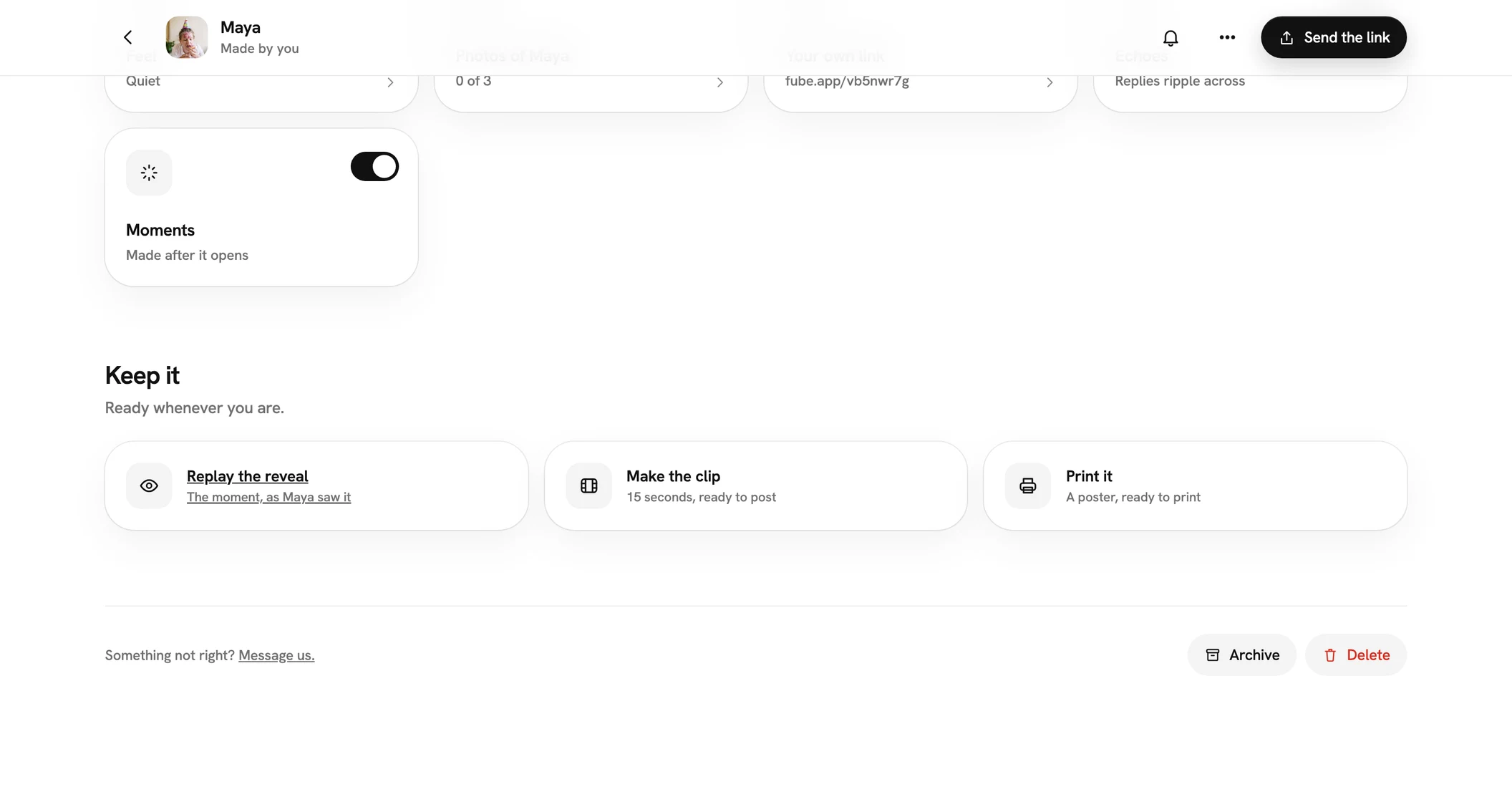
The organiser can turn Moments off with the Moments switch in Make it yours, on their page for the wall; the ones made stay. Moments are left out of the printed book, the recap and the clip's last square.