Asking your community one thing
A question wall is one question and one link. Your community answers in squares, and the answers are one thing you can point at, feature and post, instead of a comment thread.
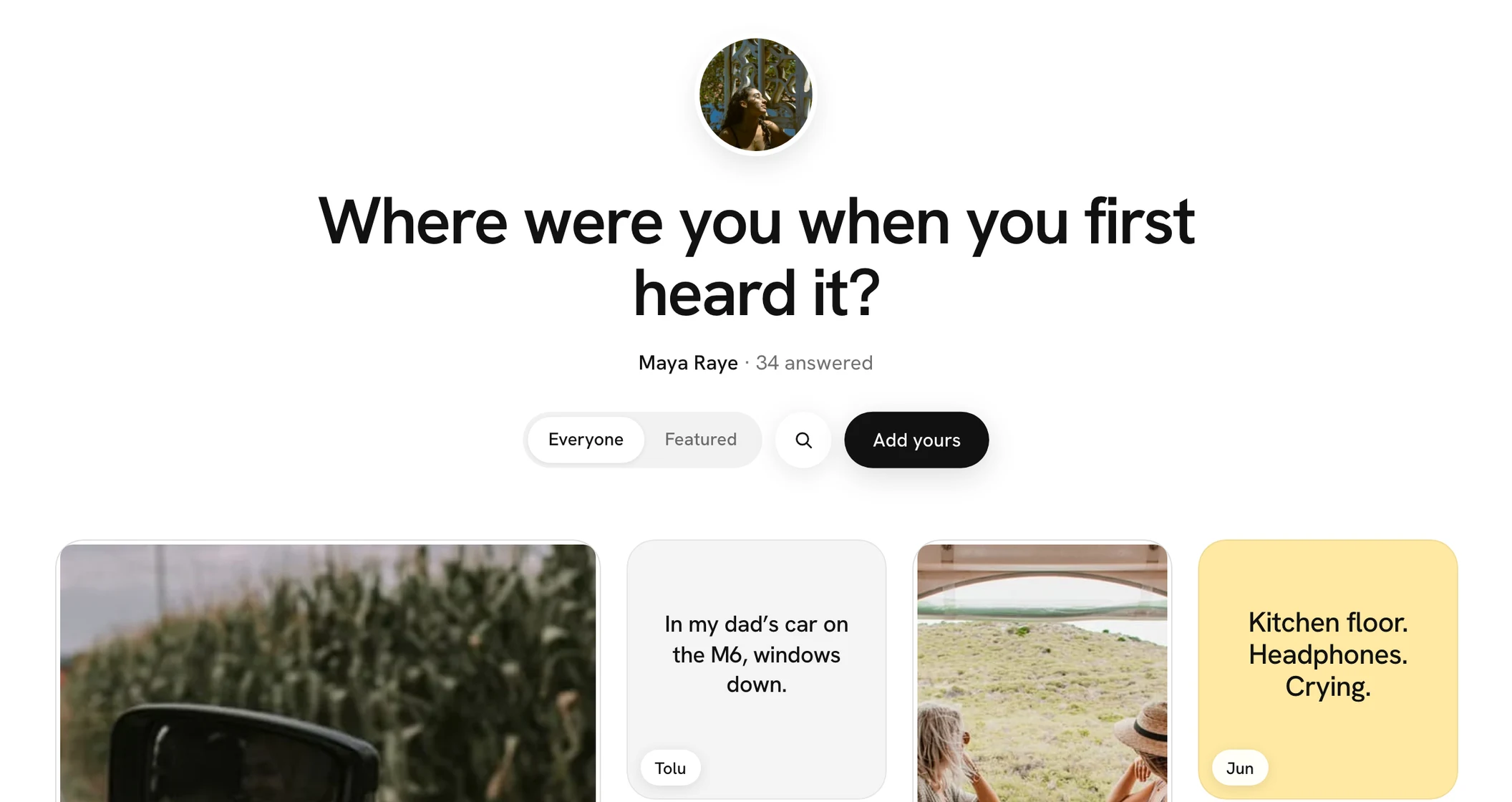
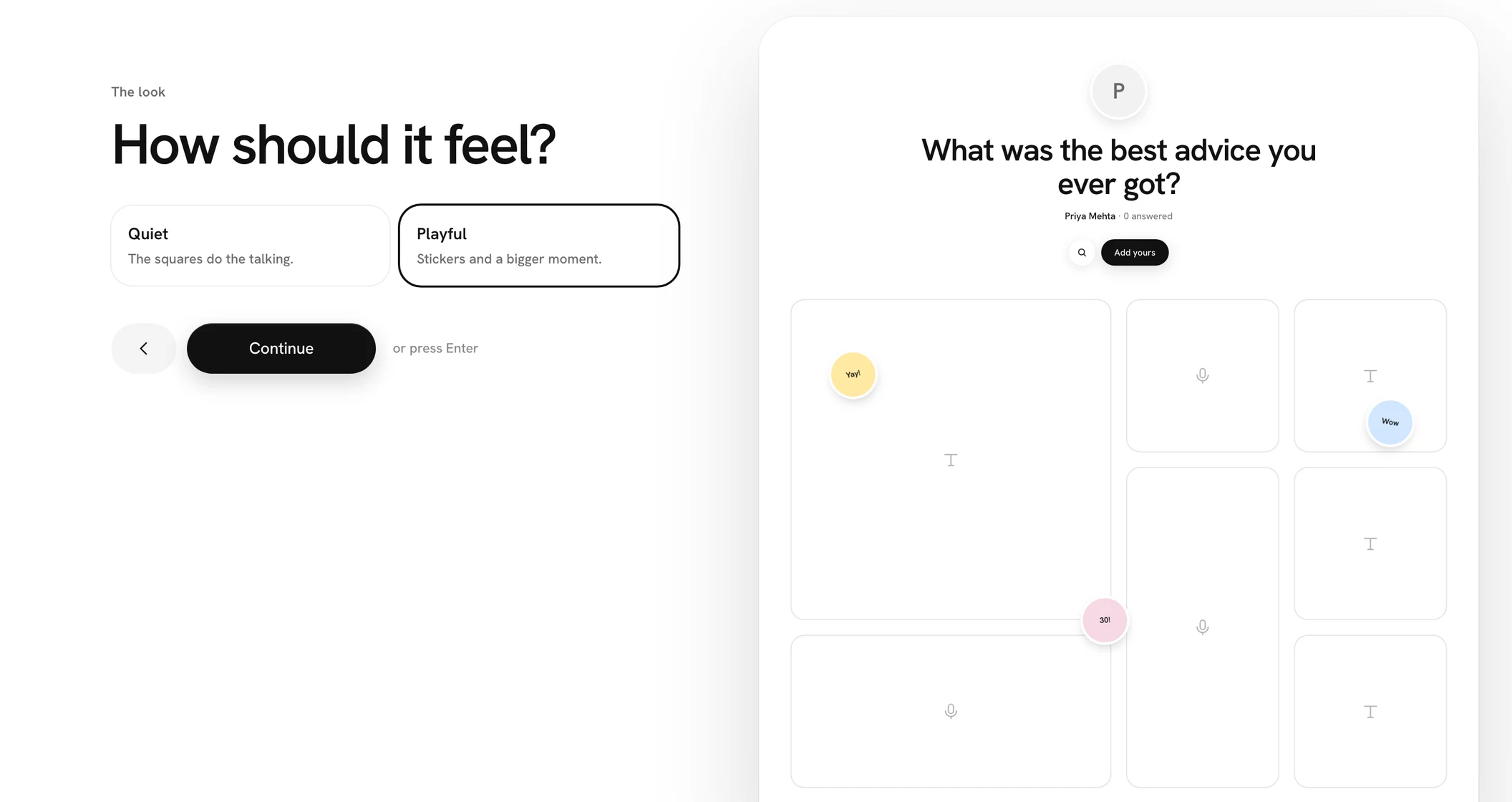
At the top sits your photo, or your initial if you have not added one in Settings, then the question, your name and how many have answered. Press the question, at any point down the page, to open the wall's card, which holds it in full with Share the wall and Sound. Past thirty answers the wall goes five across on a laptop.
1Asking it
From Home, press New wall, then choose A question for everyone. Under What do you want to ask?, write the question the way you would say it: One thing about Lagos you would tell a stranger. Or press one of the three under it to start from. The wall beside it shows it as everyone will.
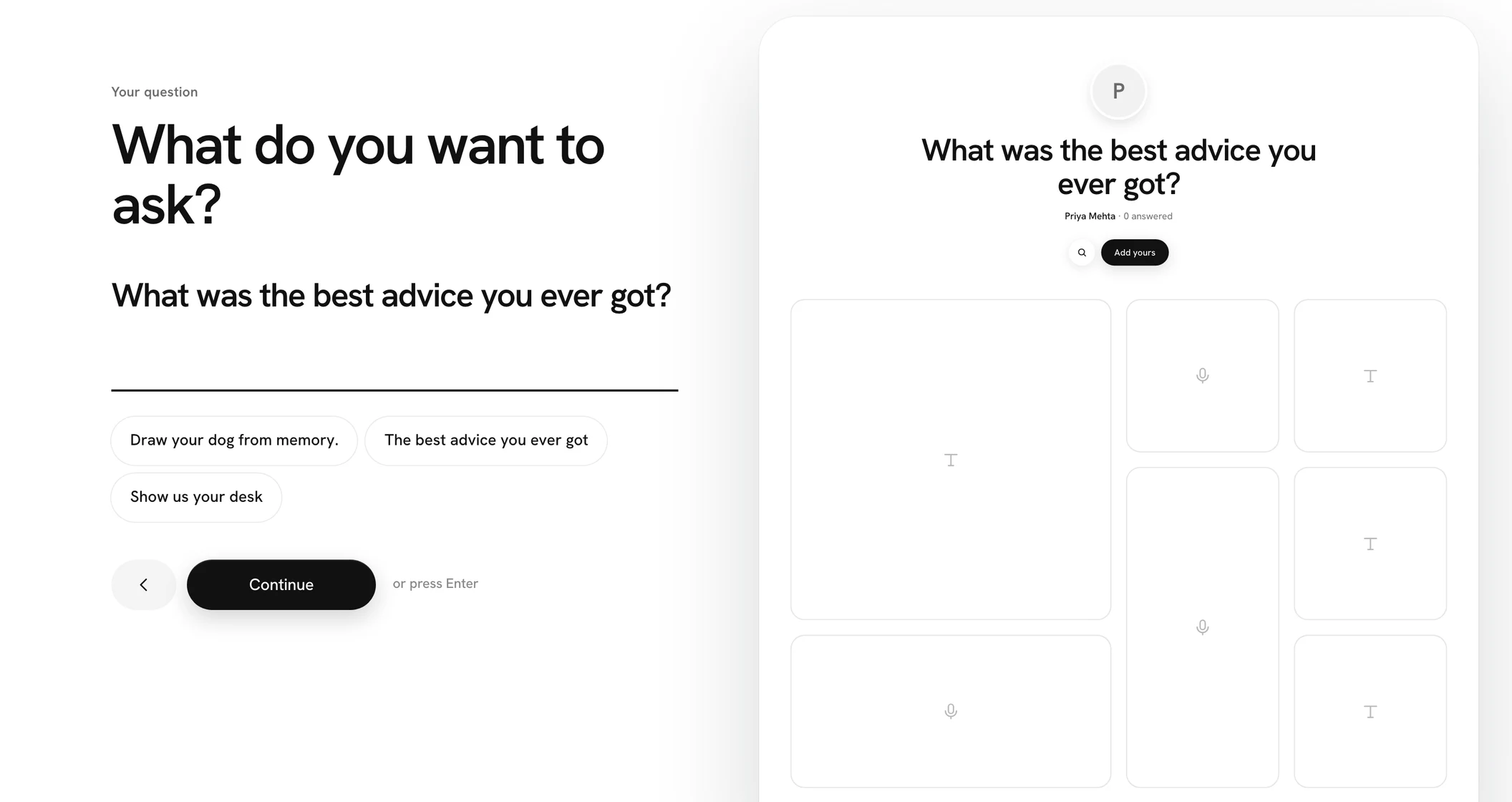
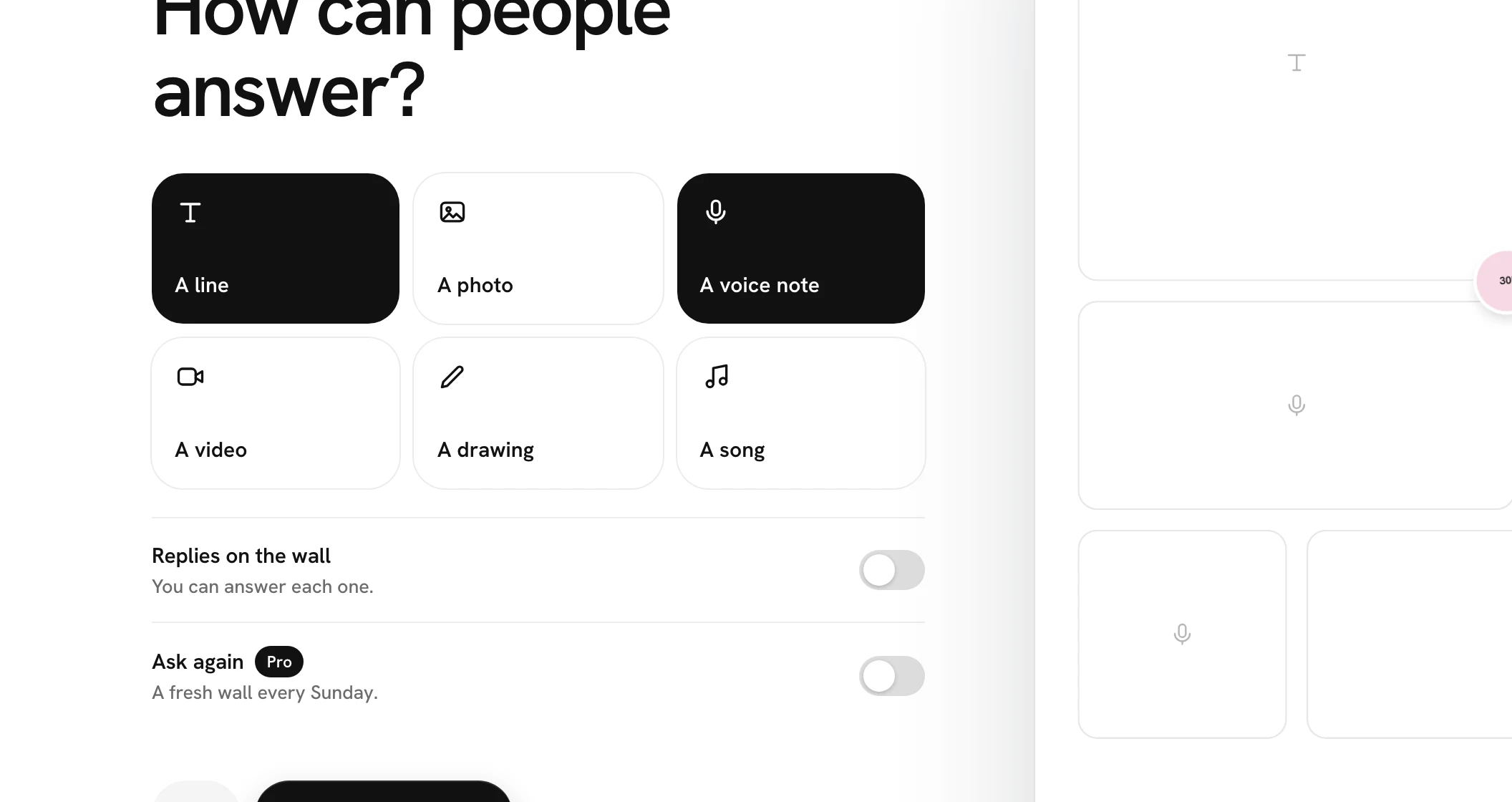
Then come how it feels and how people can answer, and Make the wall. A question wall is open as it fills, so there is no moment to choose.
If you came to Fube to ask your people something, tell the welcome after your first sign-in. It asks for your question there, and Make it starts the wall with it.
2The link
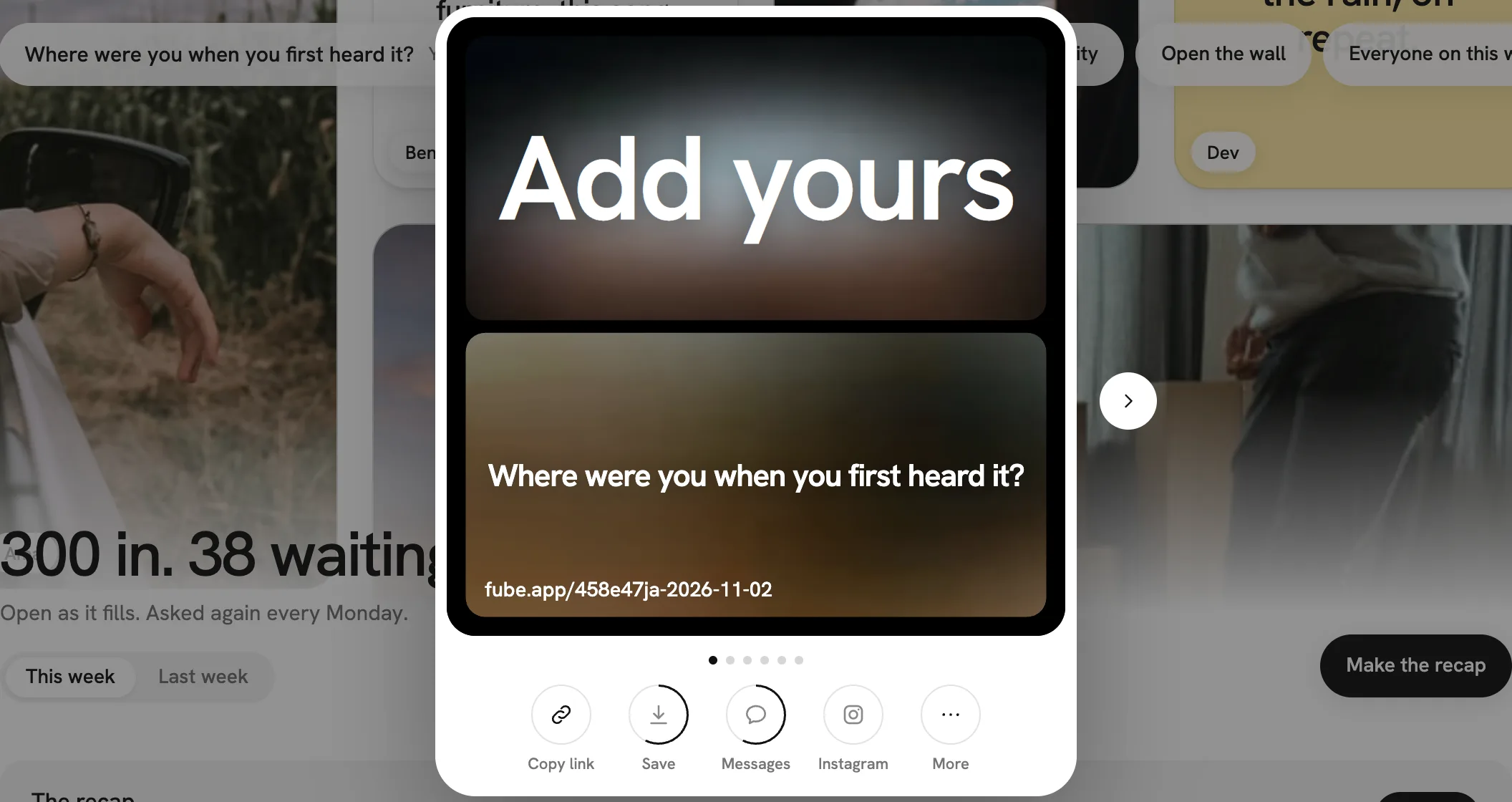
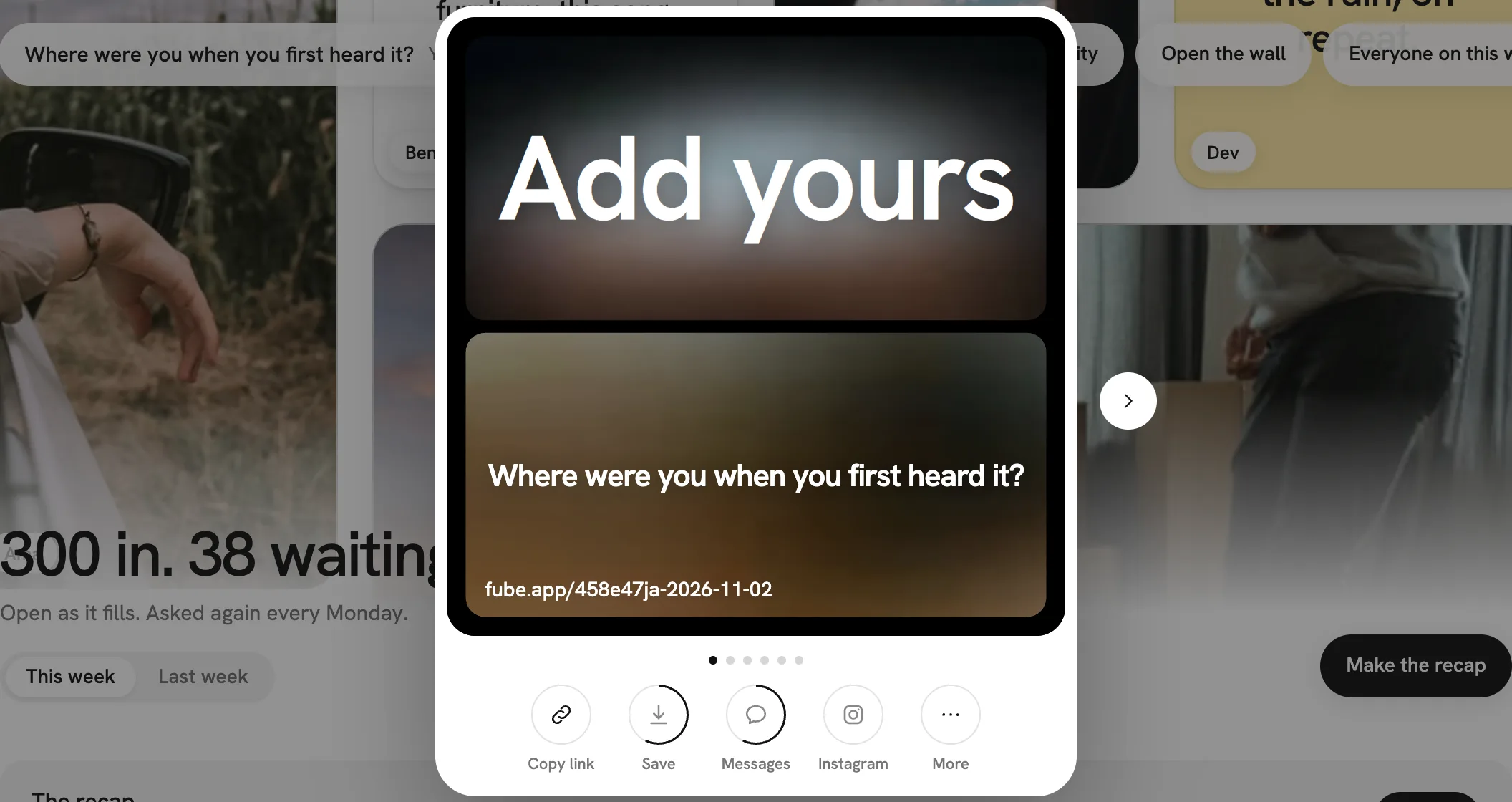
The wall has one link, fube.app and a short code. Put it in your bio, your story, your newsletter. People open it, see the answers so far, press Add yours and add their square.
3New answers
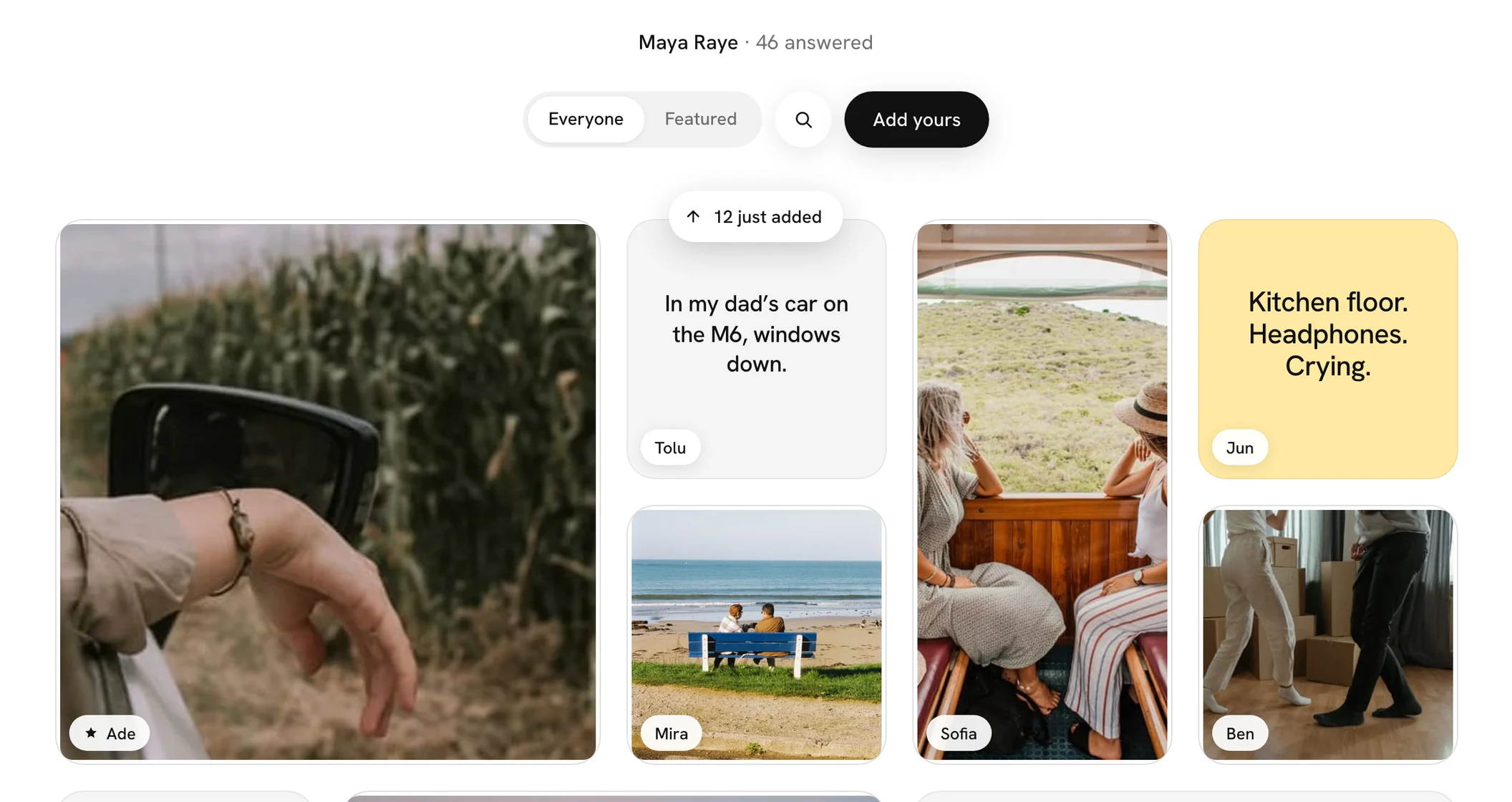
New answers never jump in under someone reading. They gather in a small white pill that stays in sight as you scroll: 12 just added. Press it and they land at the end of the wall, and the page takes you there.
4The cap
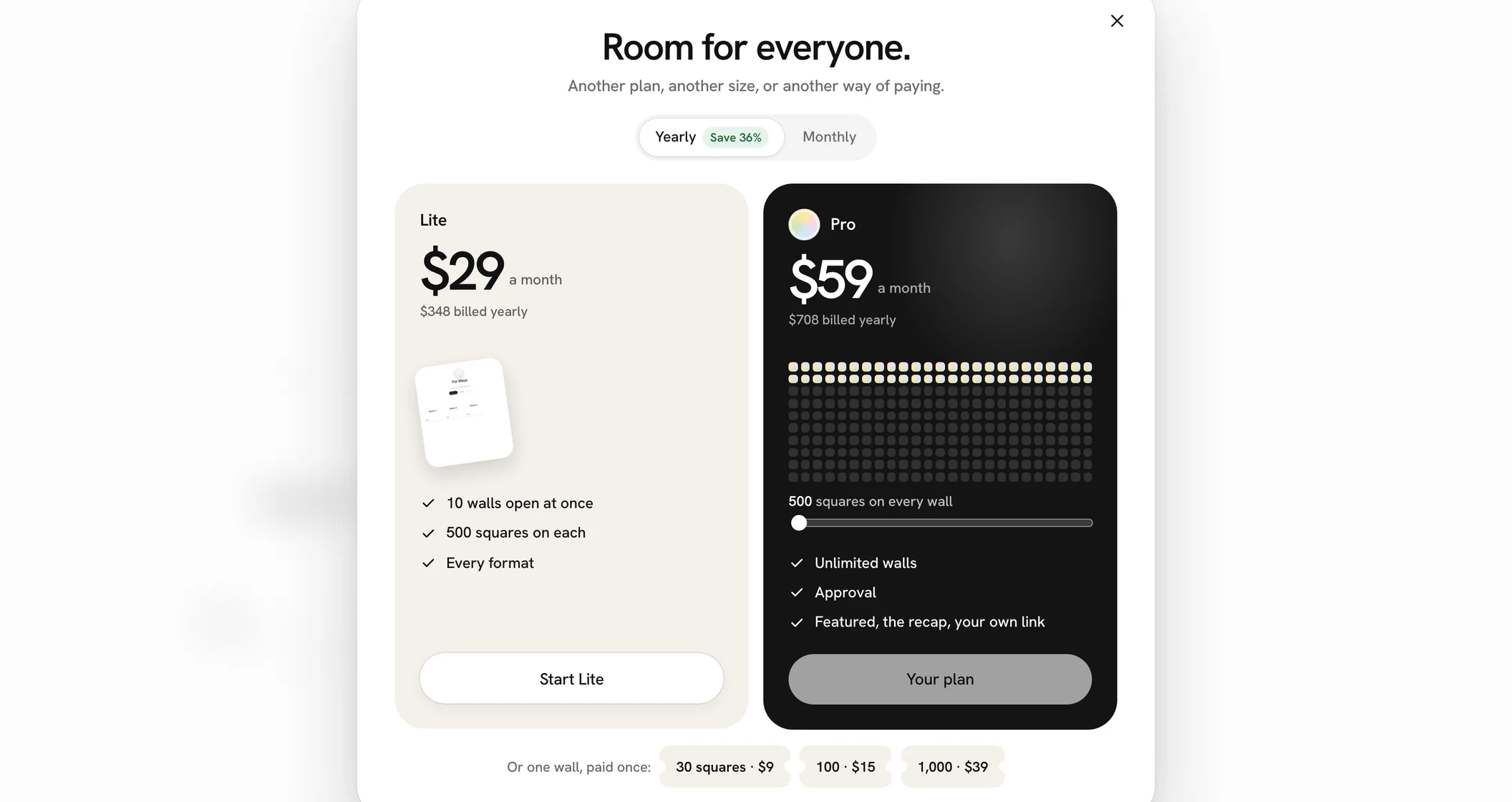
The cap is how many answers the wall takes before it closes, and your plan sets it: 15 on your first wall, 500 on Lite, and on Pro the size you chose, with a single wall its own. When the wall reaches its cap, it stops taking answers and keeps what it became.
5Approval
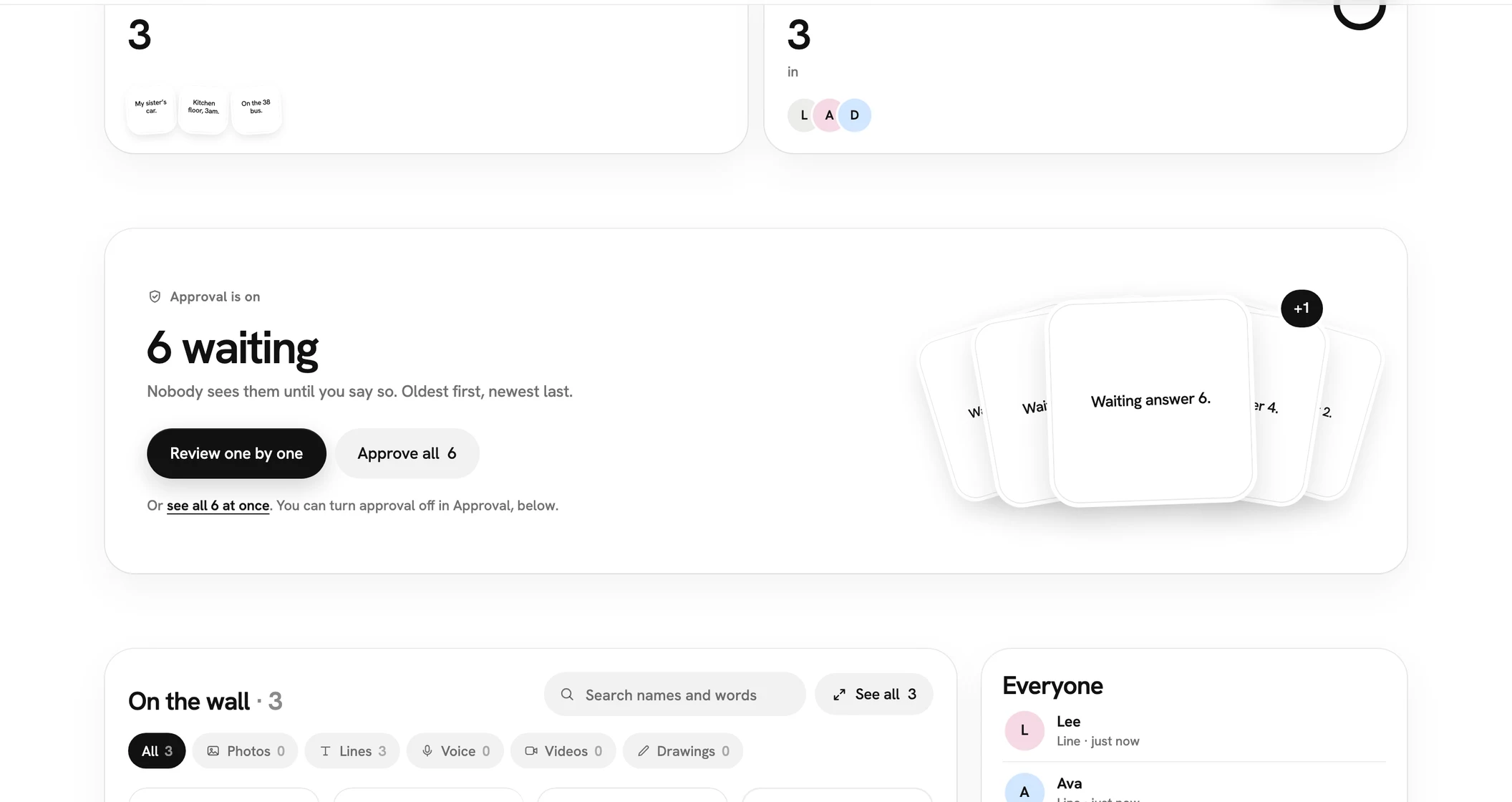
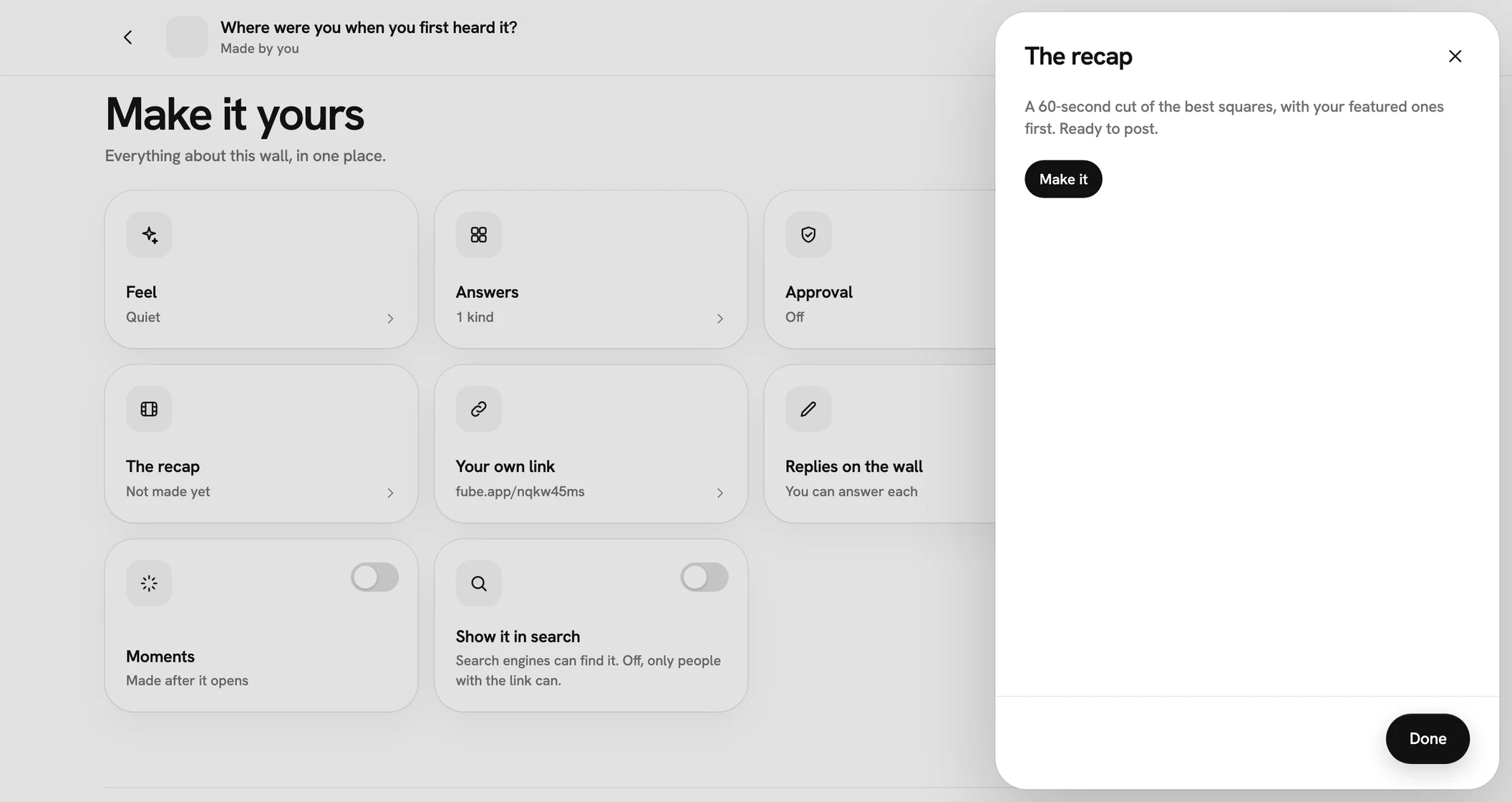
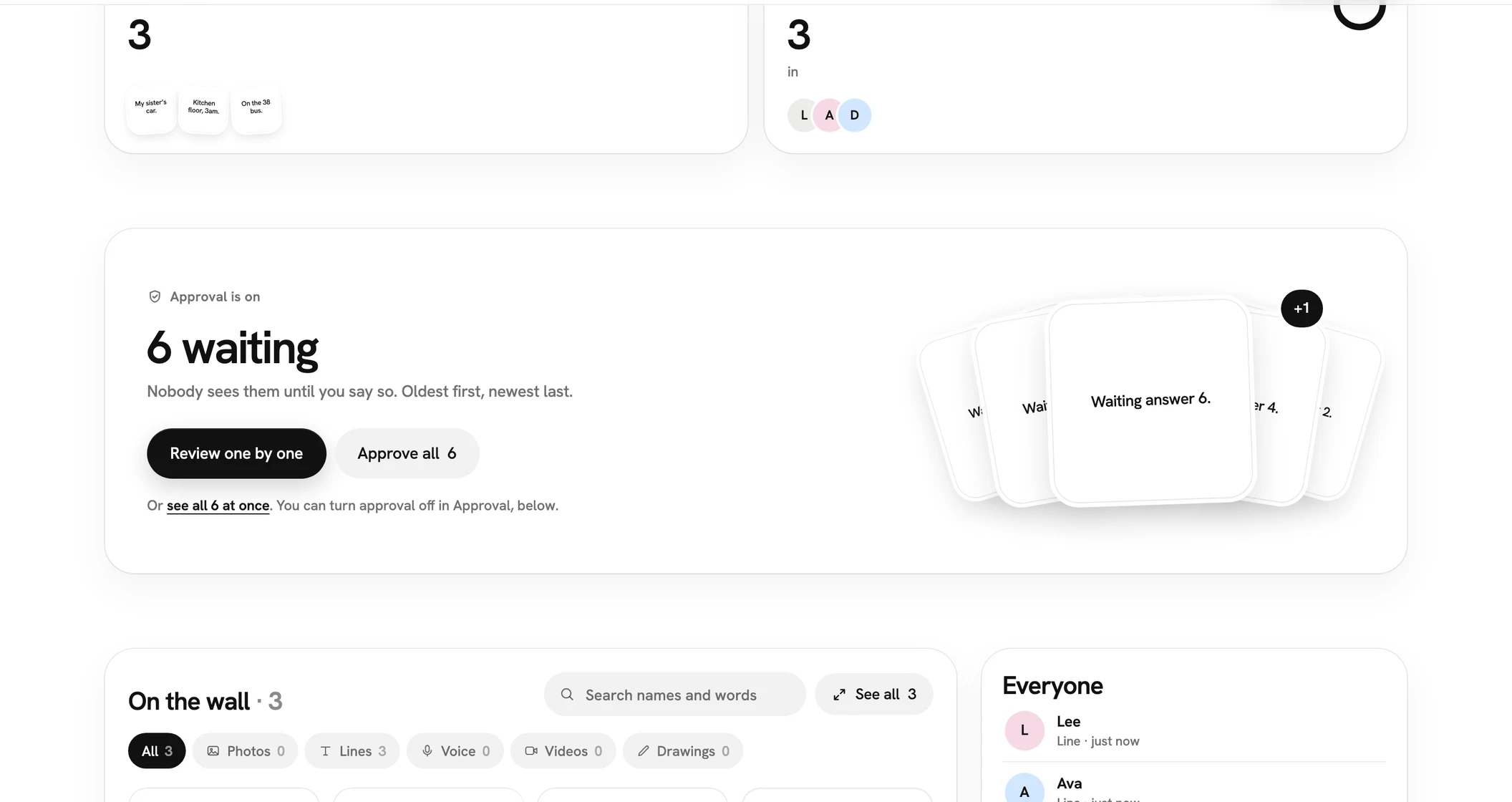
On Pro you can turn approval on, from its tile in Make it yours on your page for the wall. Answers then wait there, and only the ones you approve go up. Without Pro the tile is still there, tagged Pro: press it to see what Pro gives. The person who answered sees their own square softened on their device until you do.
6Show it in search
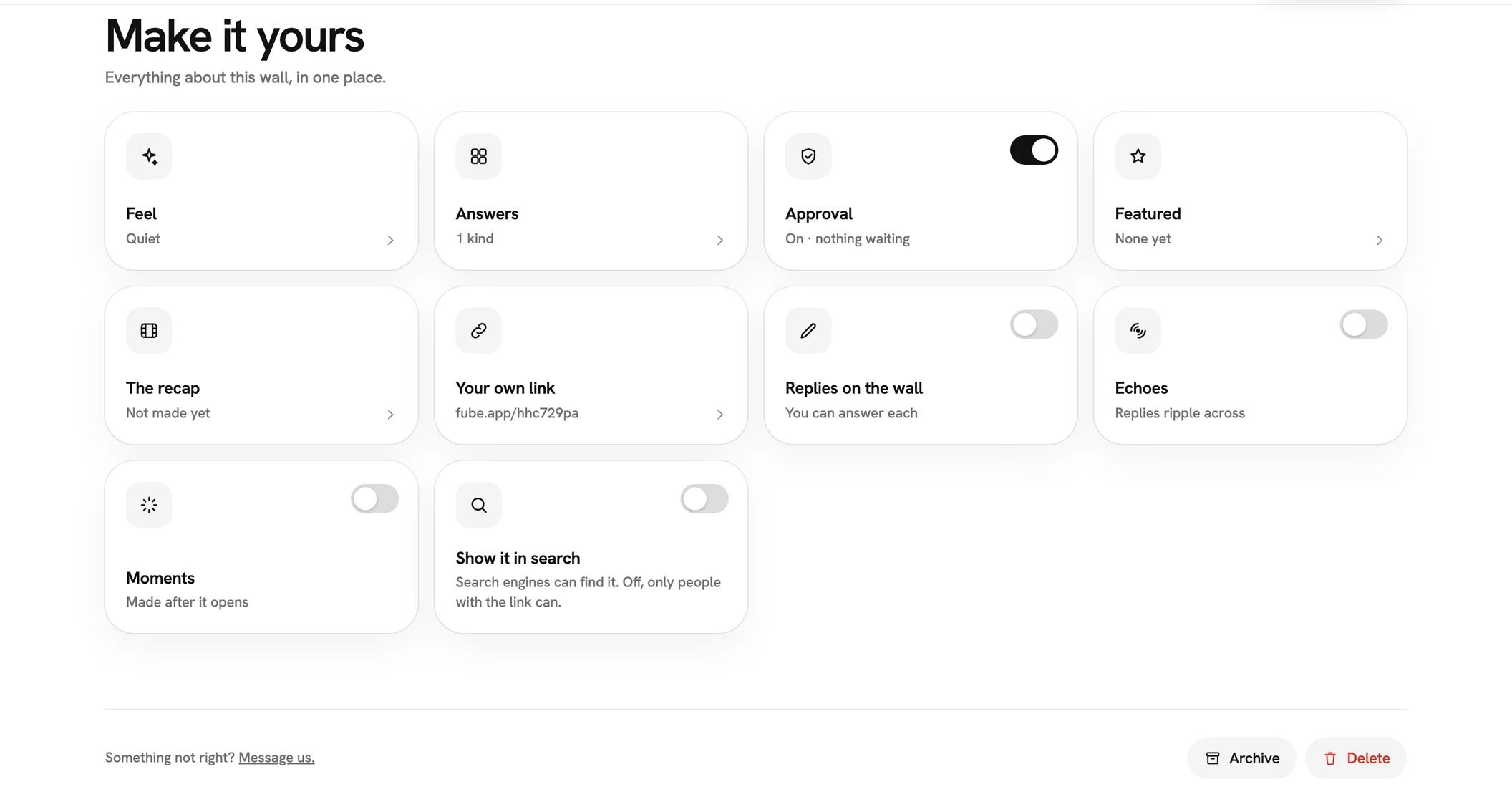
Question walls can be found by search engines if you want them to be. Turn on Show it in search, a tile in Make it yours, and the wall's link can turn up for people looking. Walls for someone never can.
7Replies on the wall
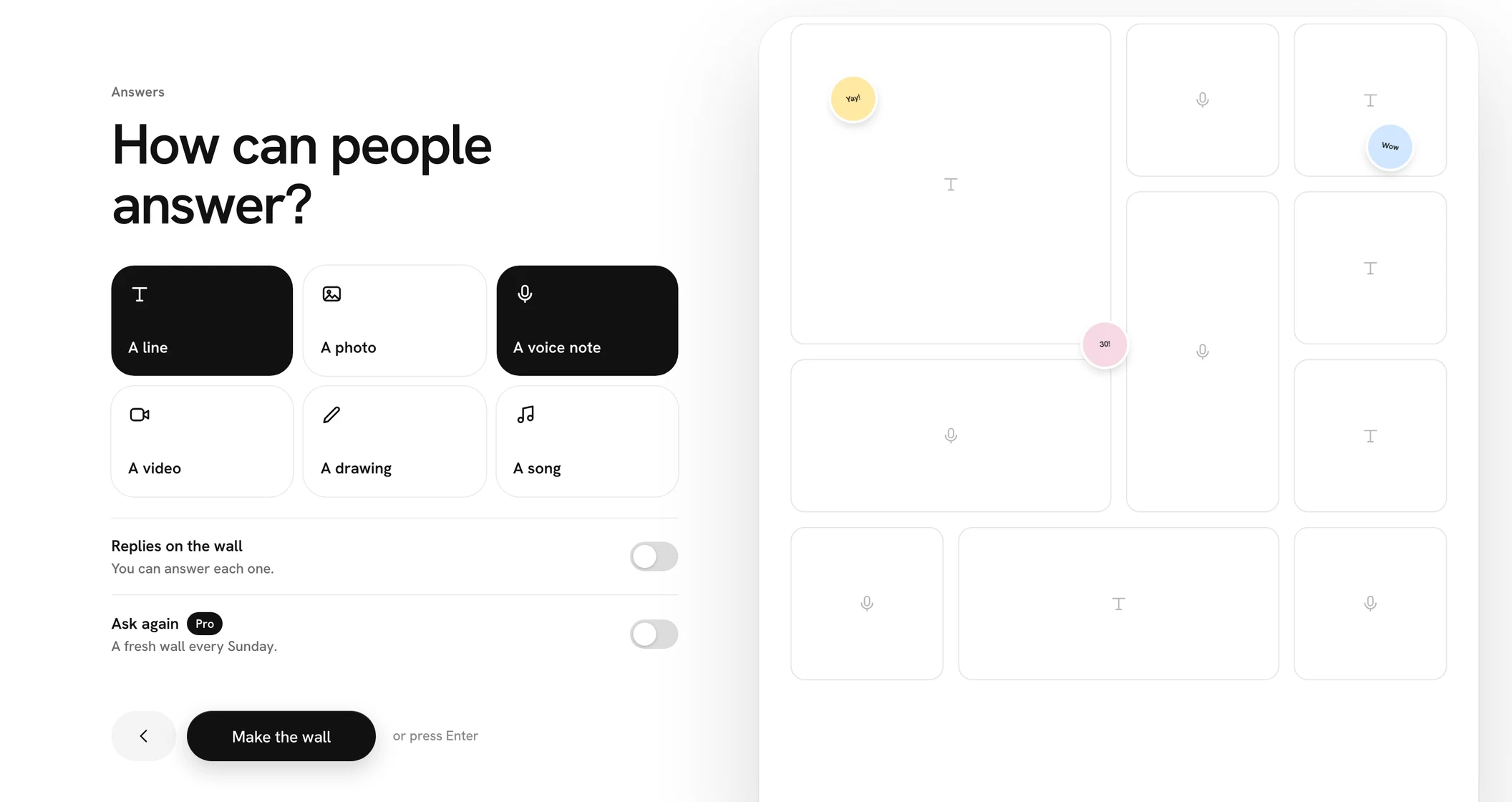
Your replies stick on an answer when someone opens it. Turn on Replies on the wall, under the ways people can answer as you make it, and they show on the squares on the wall too. It is off to begin with, and Make it yours changes it later.
8Quiet or Playful
Quiet lets the squares do the talking. Playful, where it starts, adds stickers and a bigger moment. Feel, in Make it yours, changes it later.
9Asking again
On Pro, Ask again, under the ways people can answer, brings the question back every Sunday: a fresh wall at the same link each time, with the past ones as tabs at the top of your page for the wall. Without Pro, it is tagged Pro. Ask again, new wall, in a question wall's ⋯ on Home, starts another wall with the same question and settings.