Arranging your wall
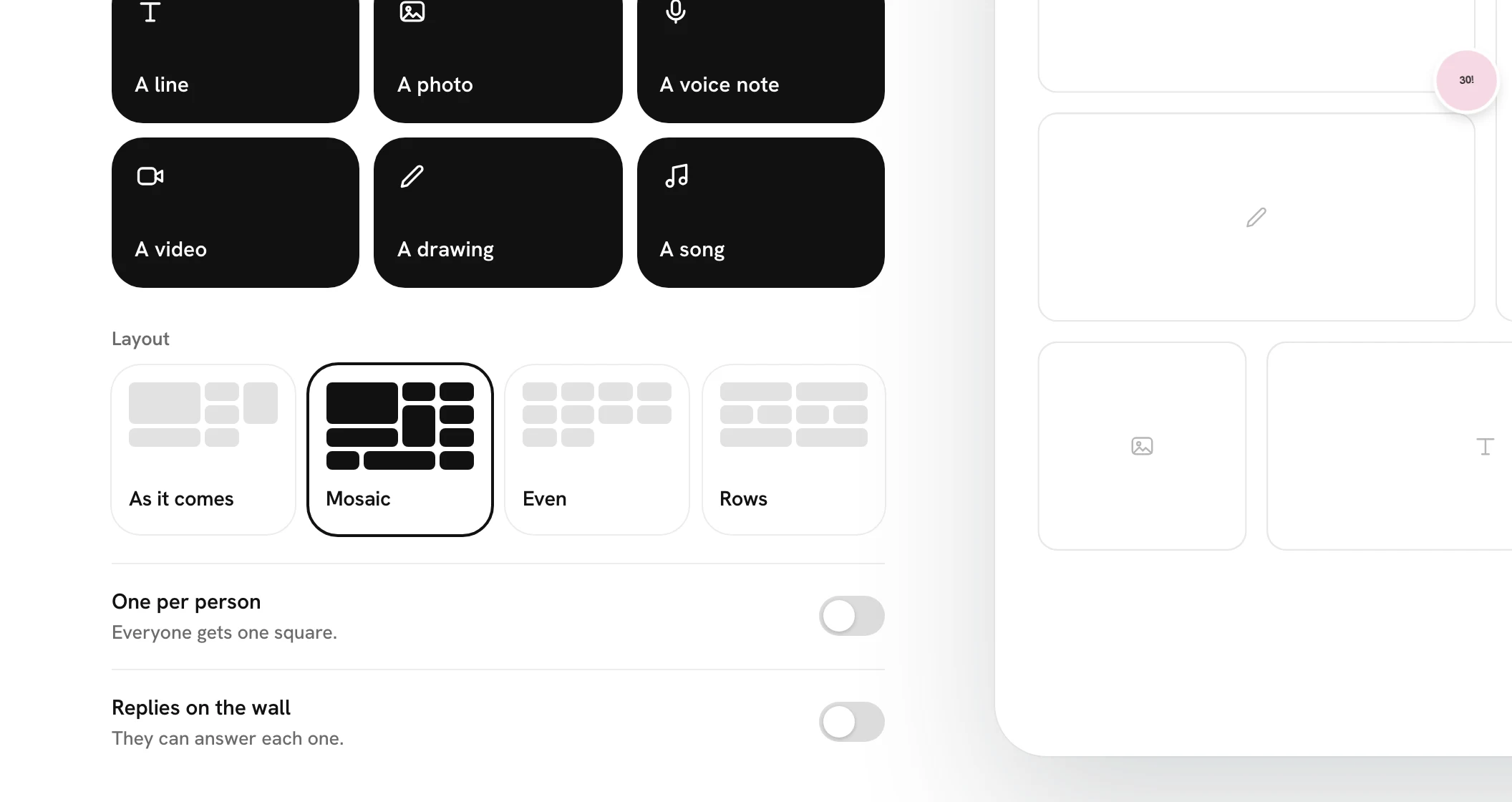
On your own wall you decide where everything goes and how big it is. You can move and resize any square, hide what doesn't belong, and add links, pages and headings that only you can add.

Opening Arranging
Press Arrange at the top of your wall, beside Share, or beside Find on a question wall. On a phone it's the round button beside Share. On your page for the wall, the Arrange tile in Make it yours opens the wall ready to arrange.
The bar at the top says Arranging, with Undo, Redo, Start again, Layout and Done. Everything you do saves as you go. Start again takes the wall back to how it was when you pressed Arrange, and Done finishes, with Your wall is arranged.

Moving and resizing
Drag a square to move it, and the squares around it make room. To change its size, drag its edge or its corner. Sizes are whole squares, from one by one up to four by four. Where the square next to it has room, a shared edge changes both.
Press a square to bring up its bar. Its first button shows the square's size, such as 2×2: press it for a small grid, and pick how many across and how many down. On a computer the arrow keys move the square you picked, and with Shift they resize it.
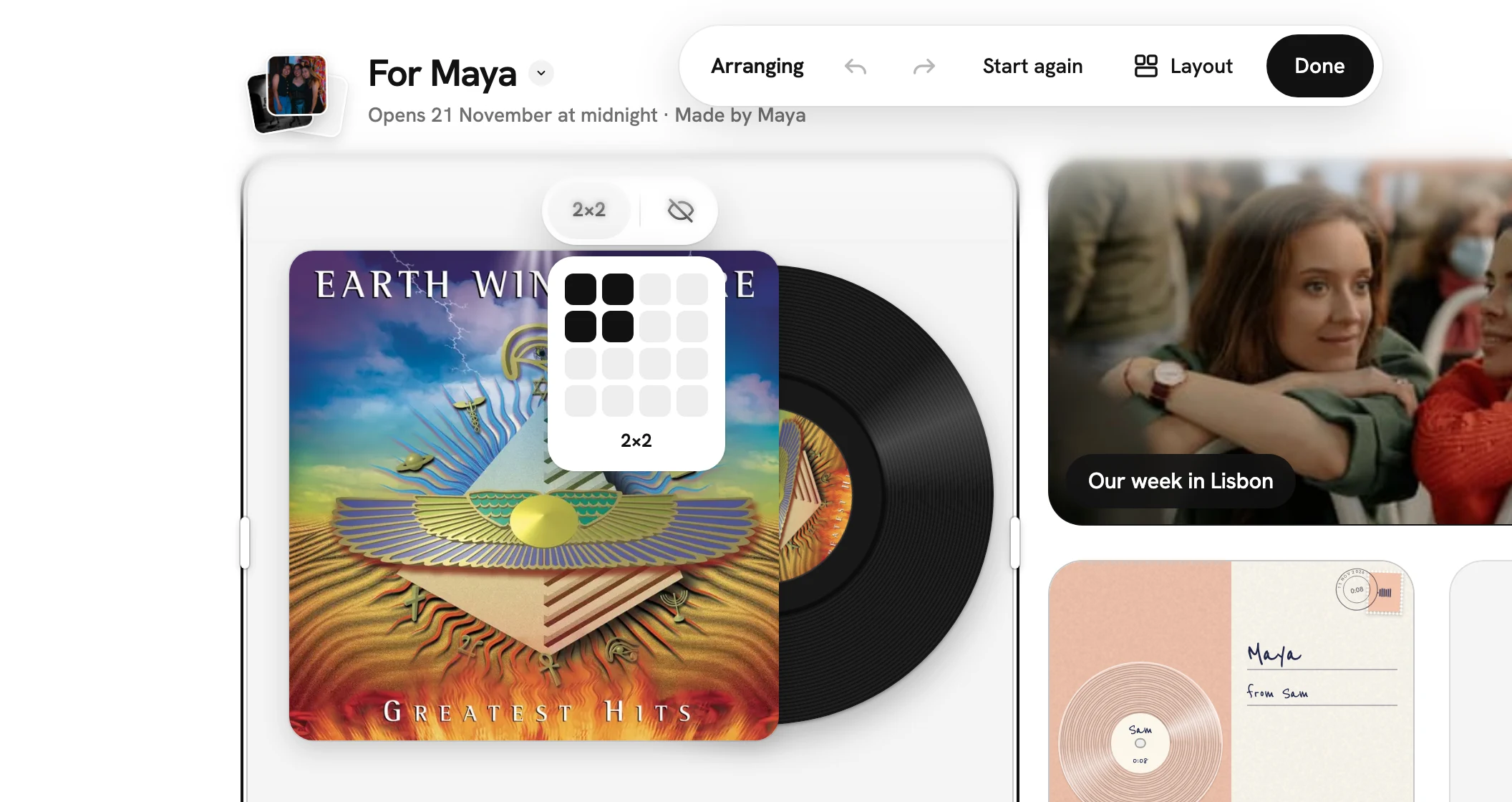
You can move, resize or hide anyone's square, but never change what's in it. On someone else's square, the crossed-out eye hides it from the wall. On one of yours, the bin removes it. Undo brings either back until you press Done. On your own words, the bar also has a row of colours.
Adding your own
The bar at the foot has Picture, Video, Words, Link, Page and Heading. Pictures, videos and words are squares like anyone's. The other three only you can put on the wall.
- Heading puts a title across the wall. A new one lands at the bottom: drag it where you want it.
- Link: paste an address and press Add link. Fube fetches its title and its picture or video, and shows it in full with the title in a pill. A press opens the address. If the site changes later, your tile stays as it was.
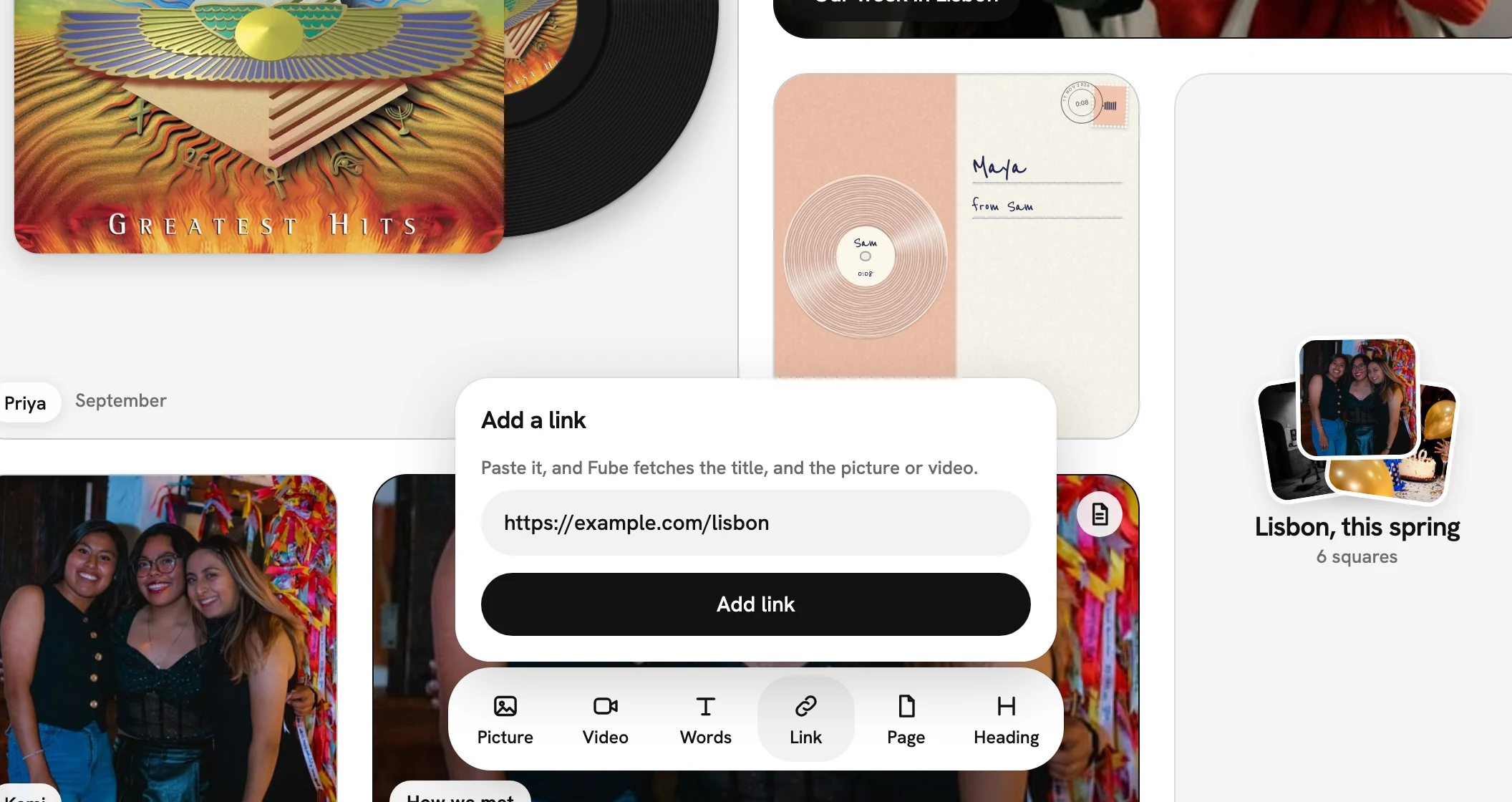
- Page gives you two kinds. A page to read opens over the wall, with words, a photo and links: write it in place, and Done saves it. A wall of its own is squares inside a square: its tile says how many it holds, and it opens to a small wall of its own, with Back to and your wall's name at the top. Only you add to it: press Arrange there.
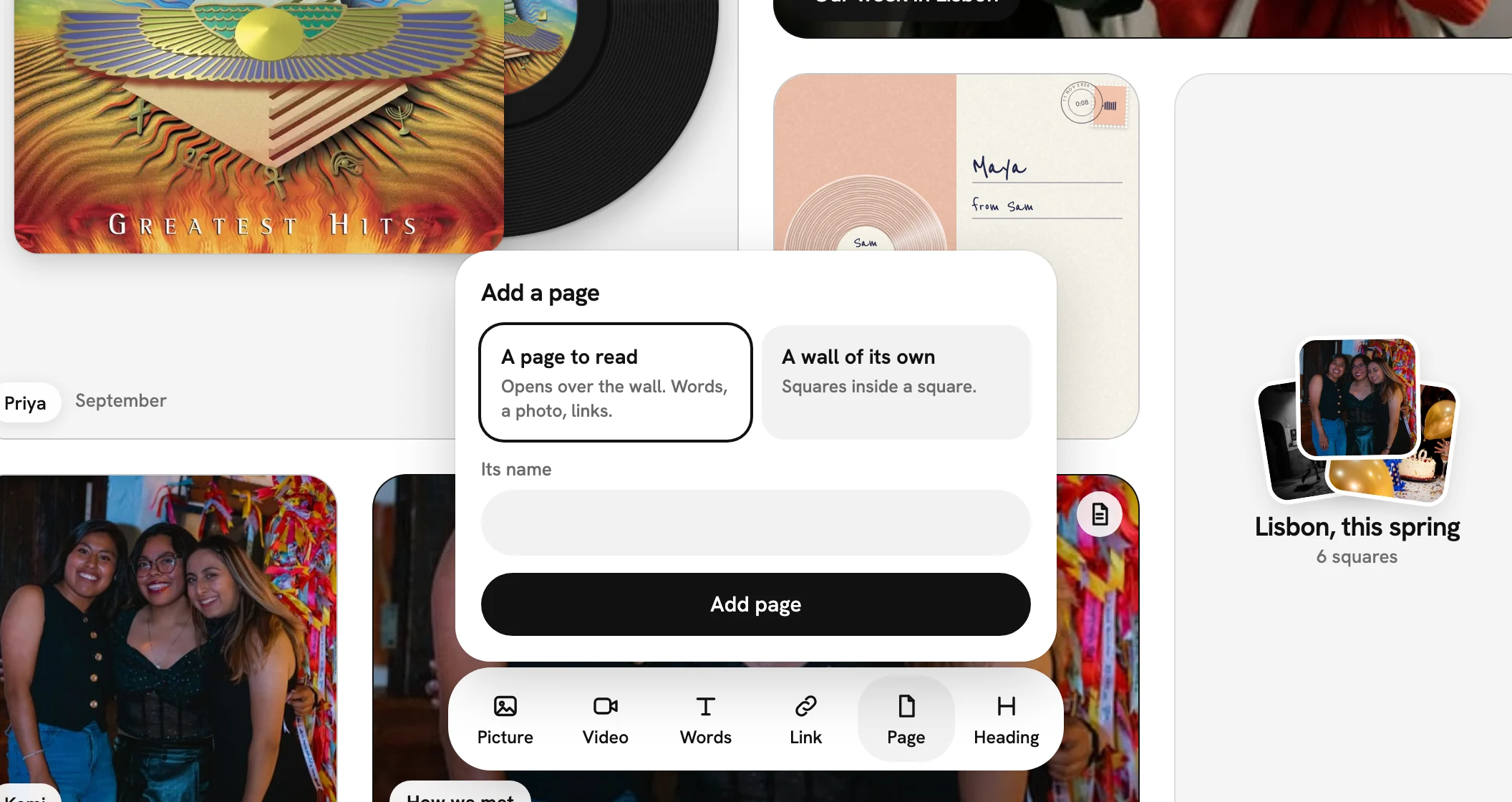
Links, pages and headings never count towards your wall's squares, and they stay off the book, the recap and the big screen. The squares you put inside a wall of its own do count towards the room your wall has.
As friends keep adding
New squares from friends never move what you placed. Without a layout, Arranging shows where they land with a line under your last square: New squares land here, so nothing you arrange moves. A gap you leave is filled by an empty square, which a friend can add to, and the next square of its kind lands there.
On a phone
The wall is two across. Hold a square for a moment to lift it, then move it. It's one shape everywhere, so what you arrange on your phone is how it looks on a laptop too.