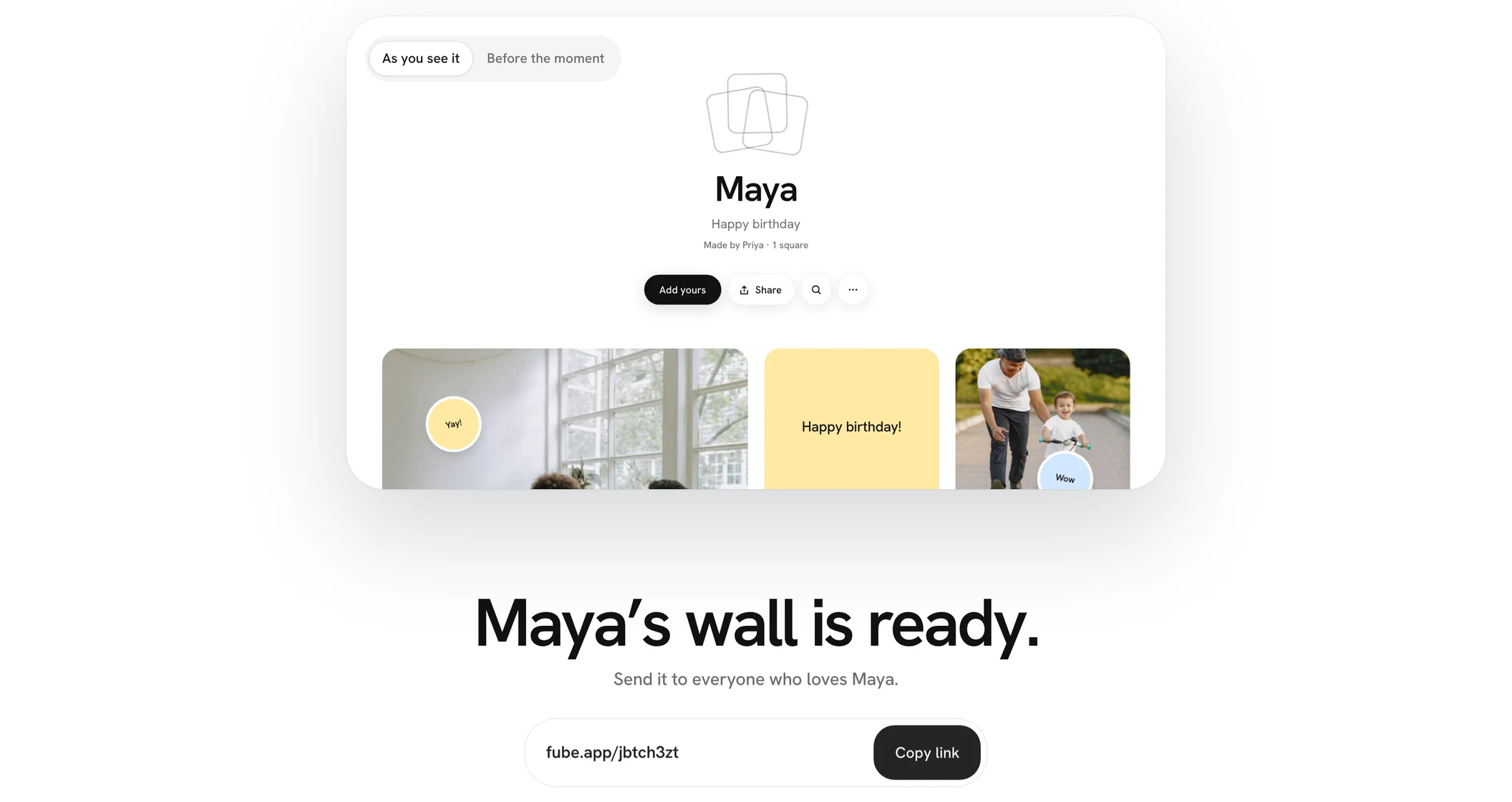
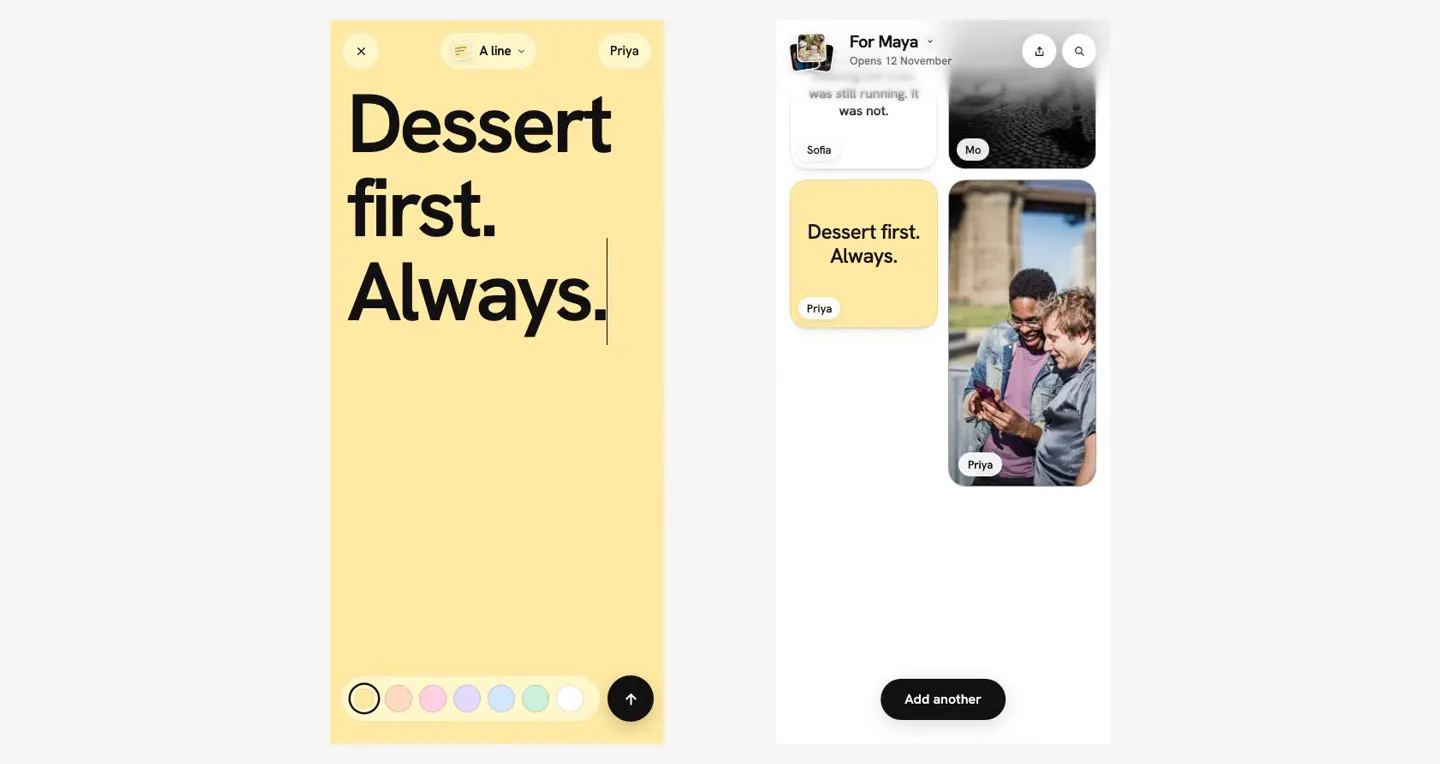
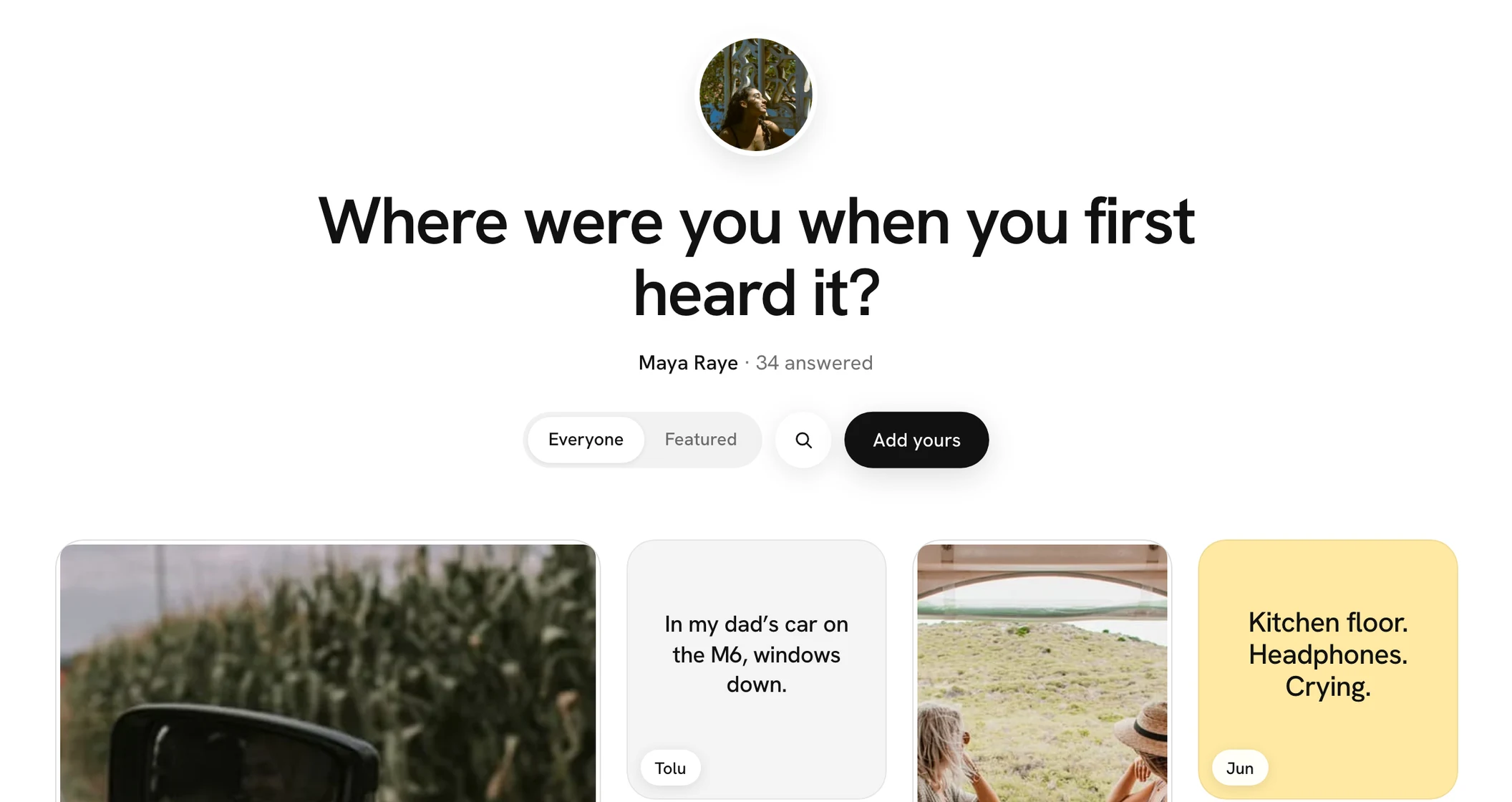
A guide to Fube
This guide is at fube.app/help, or User guide under Help in the account menu. It opens with three ways in, then every article on shelves, so you can find an answer without knowing what Fube calls things.
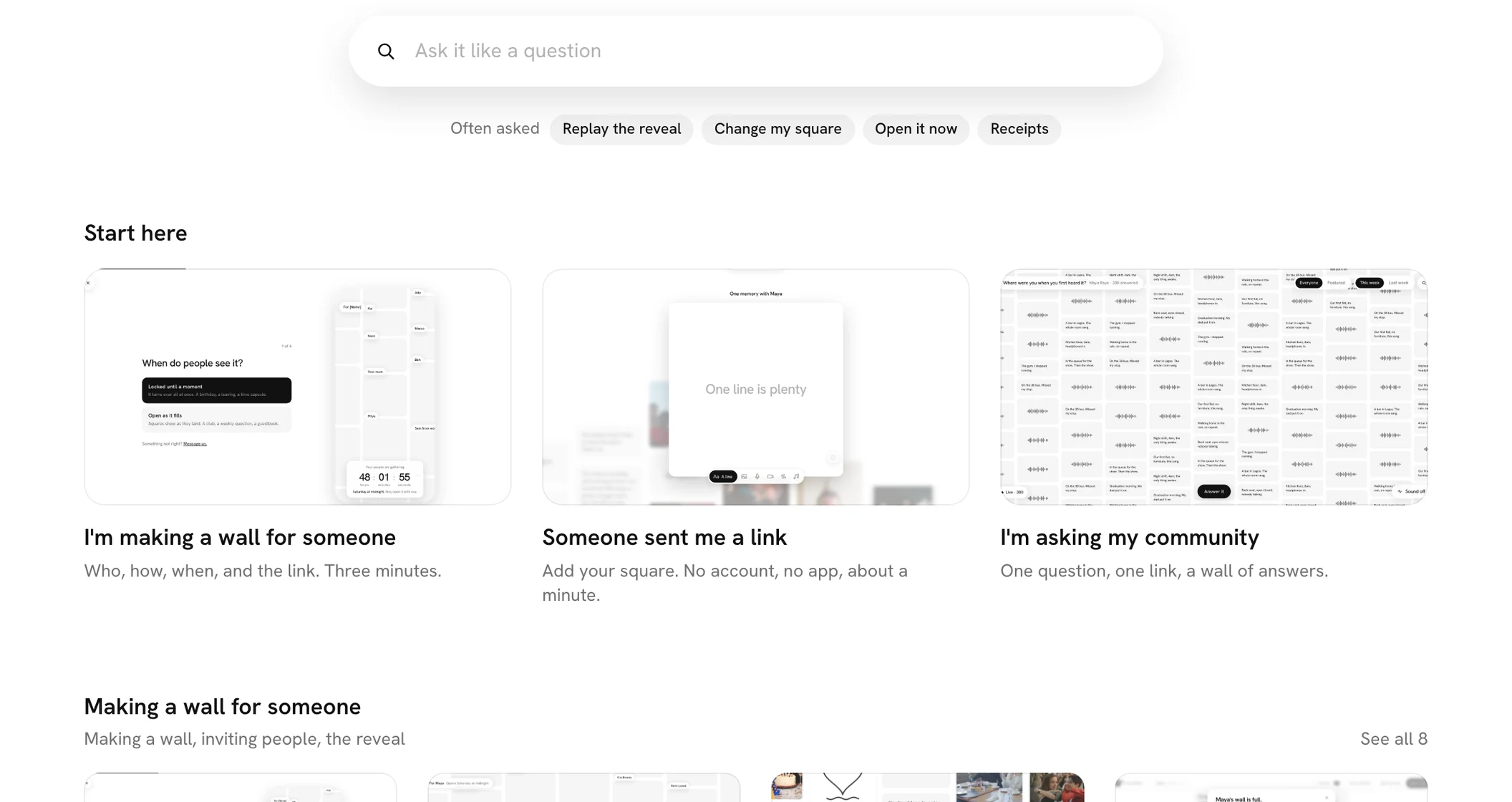
Start here
Under the search field are doors, one for each reason people come, such as I'm making a wall for someone, Someone sent me a link, and I'm asking my community. Each opens the article that gets you going: making a wall, adding your square, or asking your community one thing.
The shelves
Below the doors, each part of the guide is a shelf: Making a wall for someone, Adding to a wall, Creators and communities, and Your account. A card shows the article's picture, its title and how many minutes it takes to read.
A shelf shows four cards. See all, at its right, opens the rest in place. On a phone, each shelf is a strip: swipe it sideways for the next card.
Searching
Type a question into the field, the way you would ask a friend: where is my code, or can I change my square. From the second letter, answers drop under the field, up to eight, each with its picture, its part of the guide and the words that match. The first is on grey: press Enter to open it, or move with the arrow keys. Escape closes the list. When nothing matches, it says so, with Send feedback right there. On a computer, Often asked under the field has the questions people ask most, ready to press.
Reading an article
An article starts with a line on what it covers, then the picture that shows it. The ones that walk you through something number their steps, 1, 2, 3, with pictures of what you will see, and On this page, beside the article on a computer, lists them so you can go straight to one.
At the end, Did this answer it? takes a Yes or a Not quite. Not quite opens Send feedback with the article already named, so a person can answer what was missing. Related, under it, has three more to read next.