Seeing a wall
A wall is a page you scroll. Everyone's squares sit in a column down the middle, in the order they were added, the newest at the end.

The top of the wall
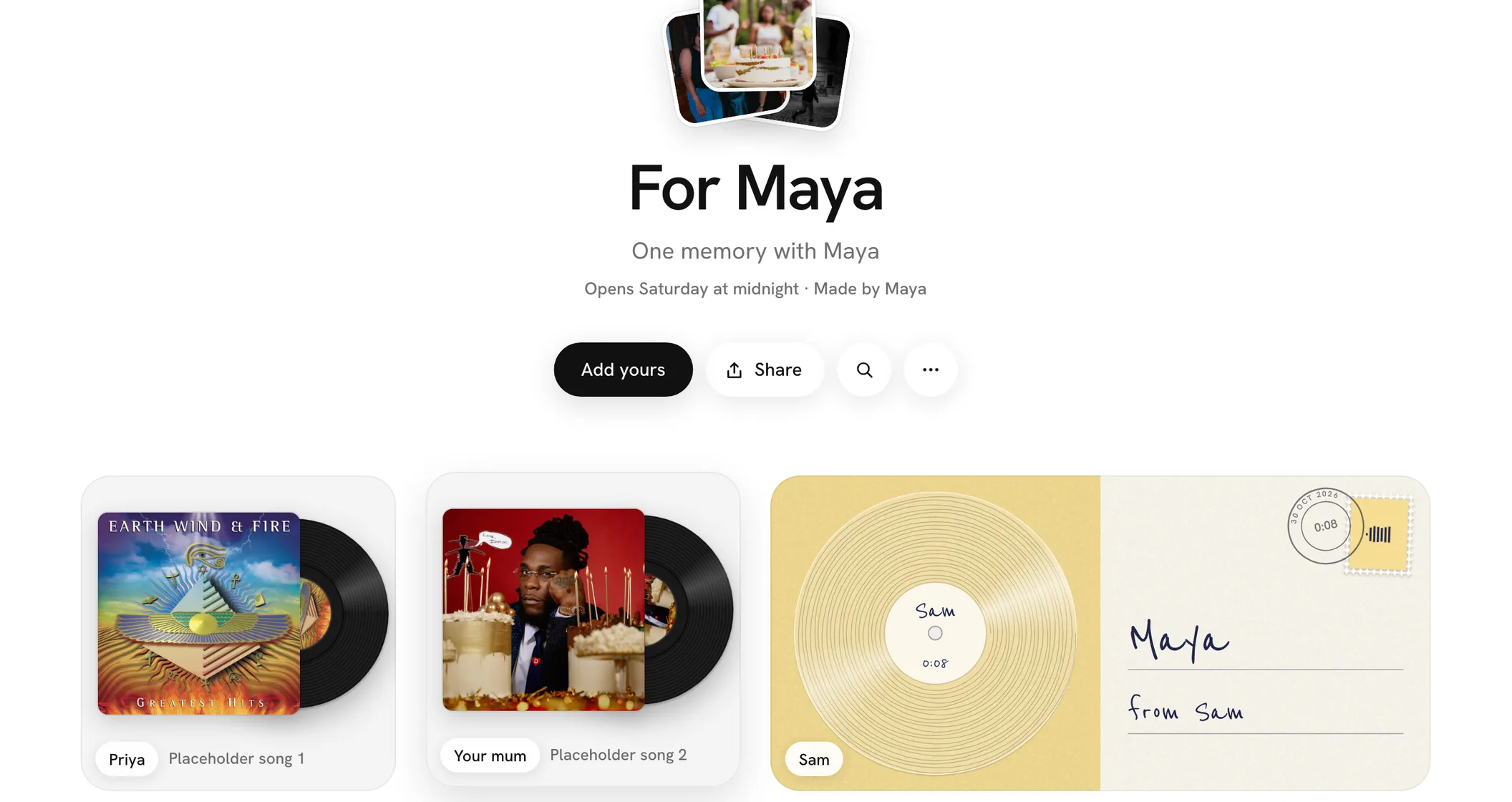
At the top sit a pile of three photos, the wall's name, its prompt and when it opens, then Add yours, Share, Find and three dots. Scroll down and it settles to the left. On a phone, Share and Find go to the top right and Add yours waits at the foot of the screen.
Press the three dots, or the wall's name once you have scrolled, and the wall's card opens. What is in it depends on who you are: the person who made the wall has Photos of Maya, the person it is for has Keep it and Replay the reveal, and everyone has Sound.
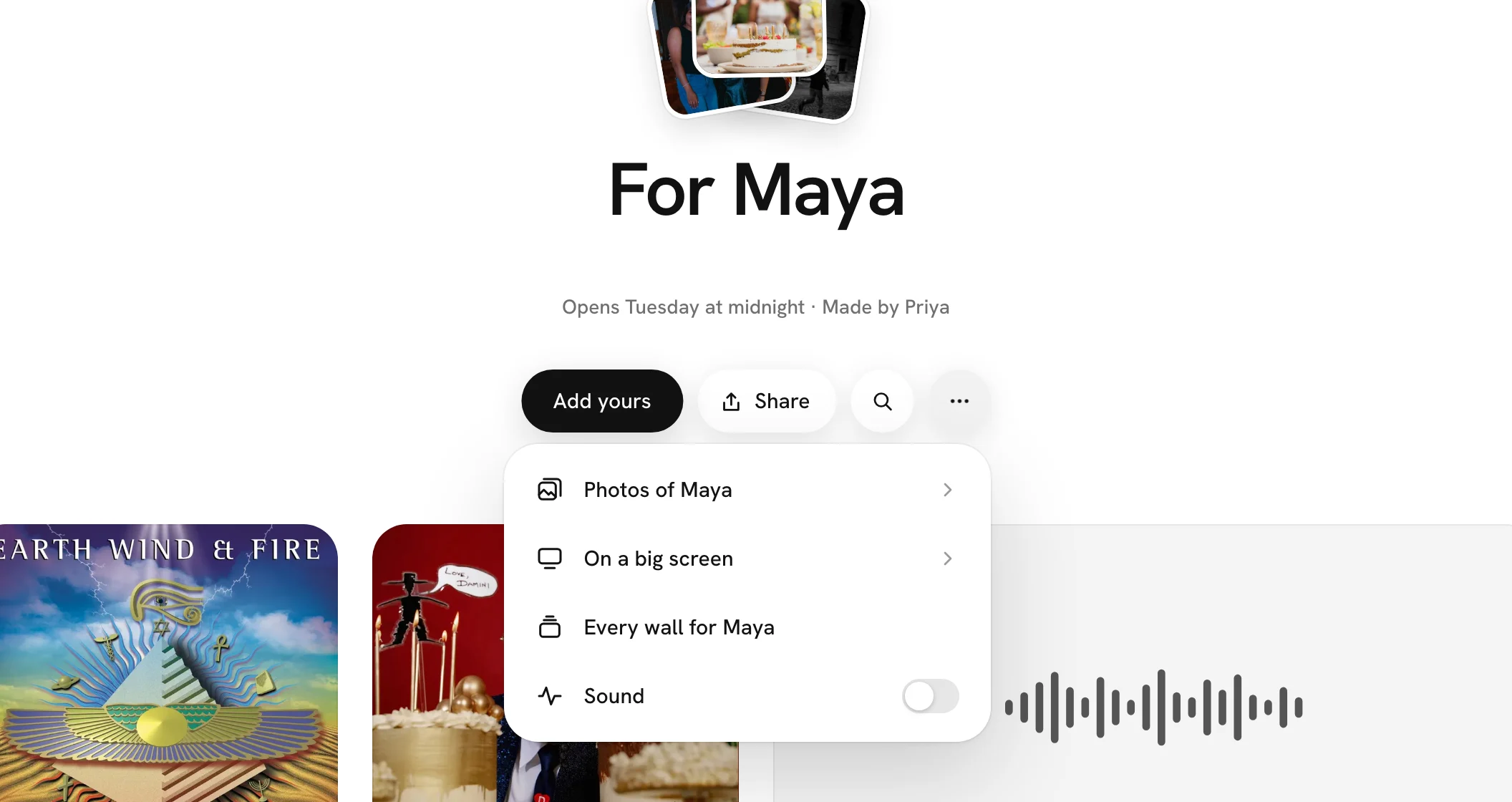
Someone's other walls
If someone has other walls and you have been on one, their pile has a sticker, such as 3 walls. Press the pile for Every wall for Maya, each wall as its pile, newest first. The end of a wall has More for Maya, and its card the same link. On your own page, Hide from my page sits under each opened wall.
How it is laid out
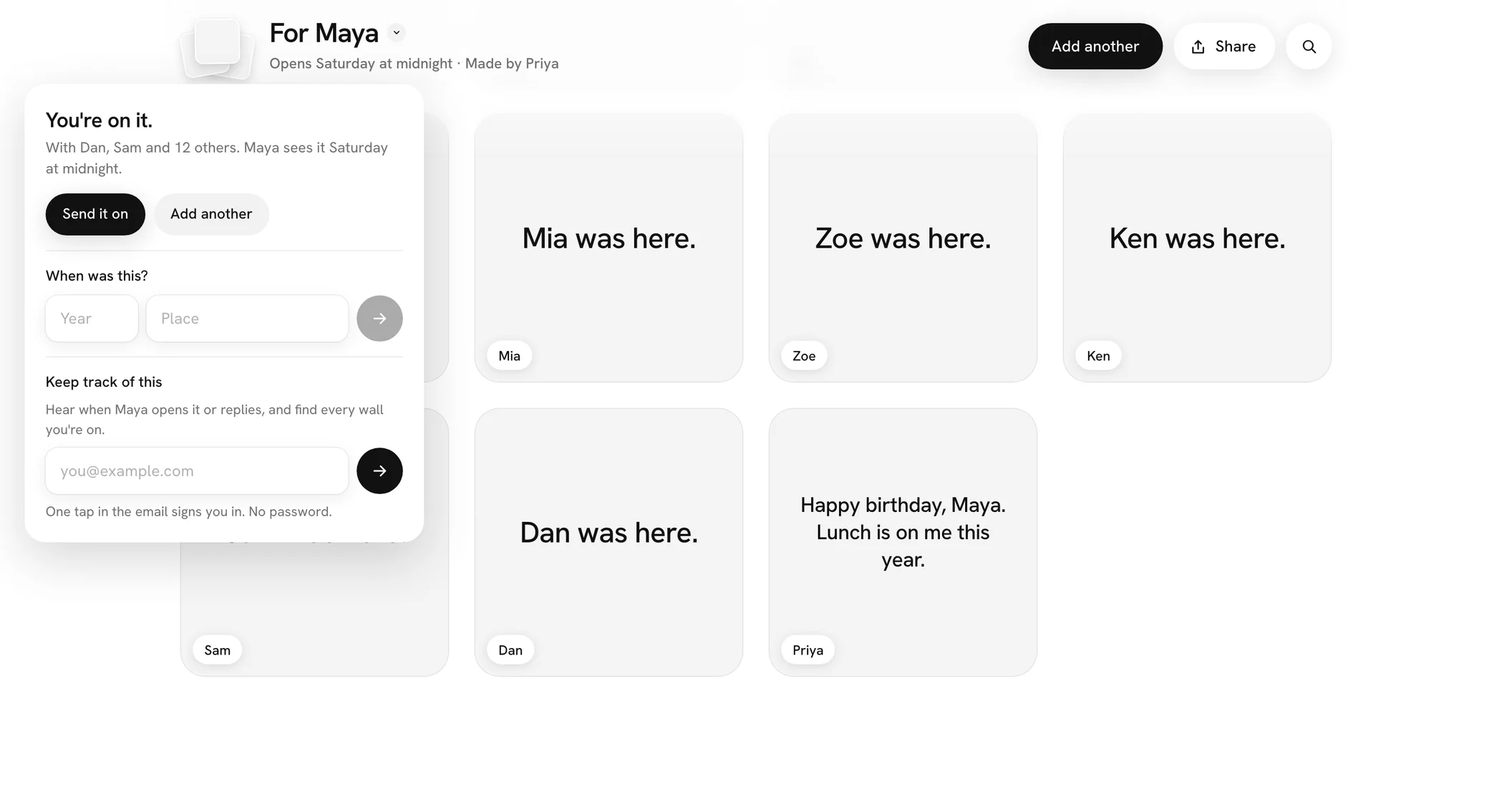
On a laptop the wall is four squares across, and on a phone two. A bigger screen gets more across, never bigger ones. Each square takes the room its kind needs, never more because of who made it:
- a tall photo is one square wide and two tall
- a wide photo, and a video, is two by two
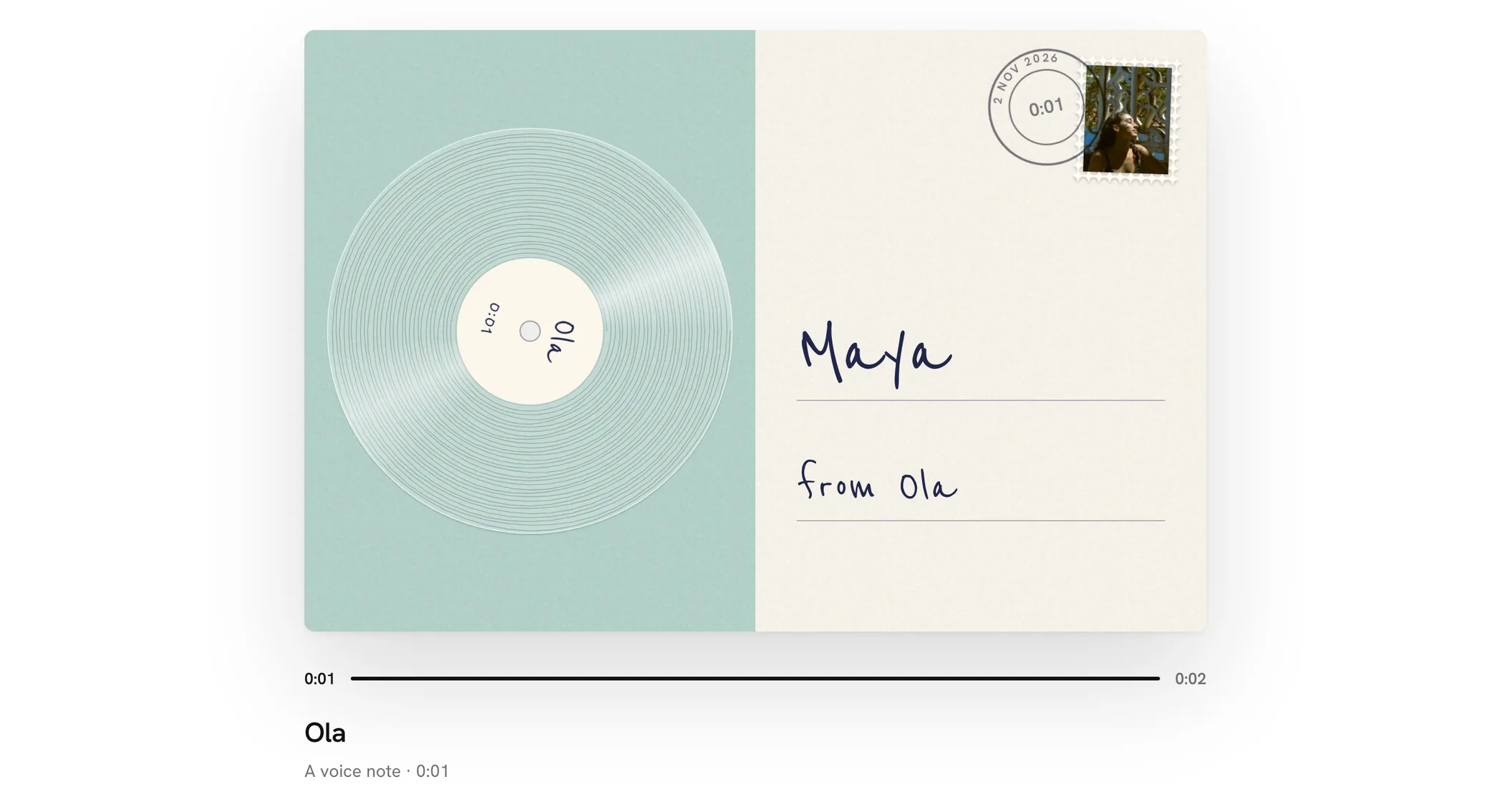
- a voice note is two wide and one tall, a postcard
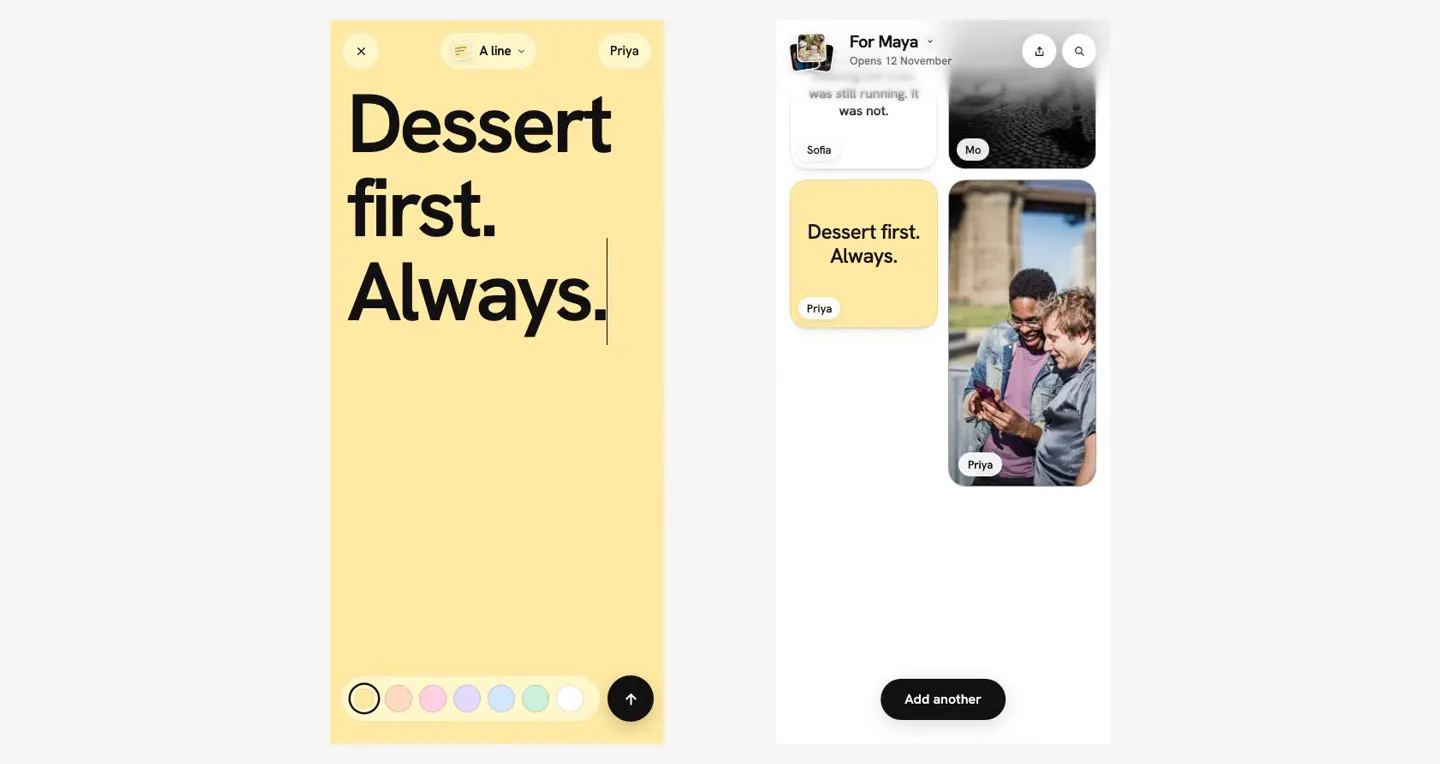
- a line and a drawing are one square
- a song is one square, or two wide and one tall if whoever added it chose Two wide
- a long line, over 200 characters, is two wide, set like a letter
The names
Every square has the first name of the person who made it on a small pill in its bottom-left corner, always there, on a phone as on a computer.
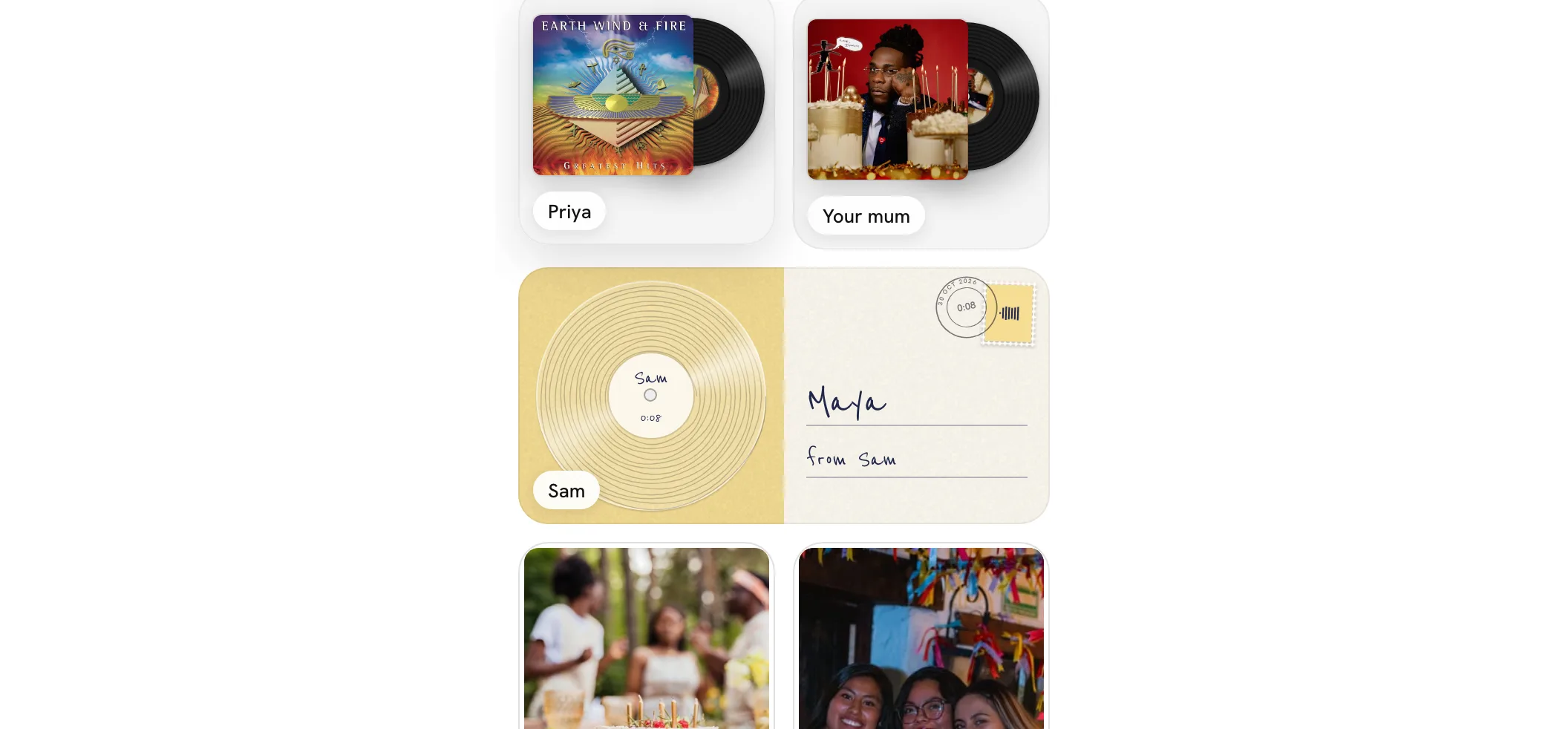
When someone has answered a square with one of their own, it sits on the square's corner as a small sticker. Press it to see that answer, or open the square to see them all.
Opening a square
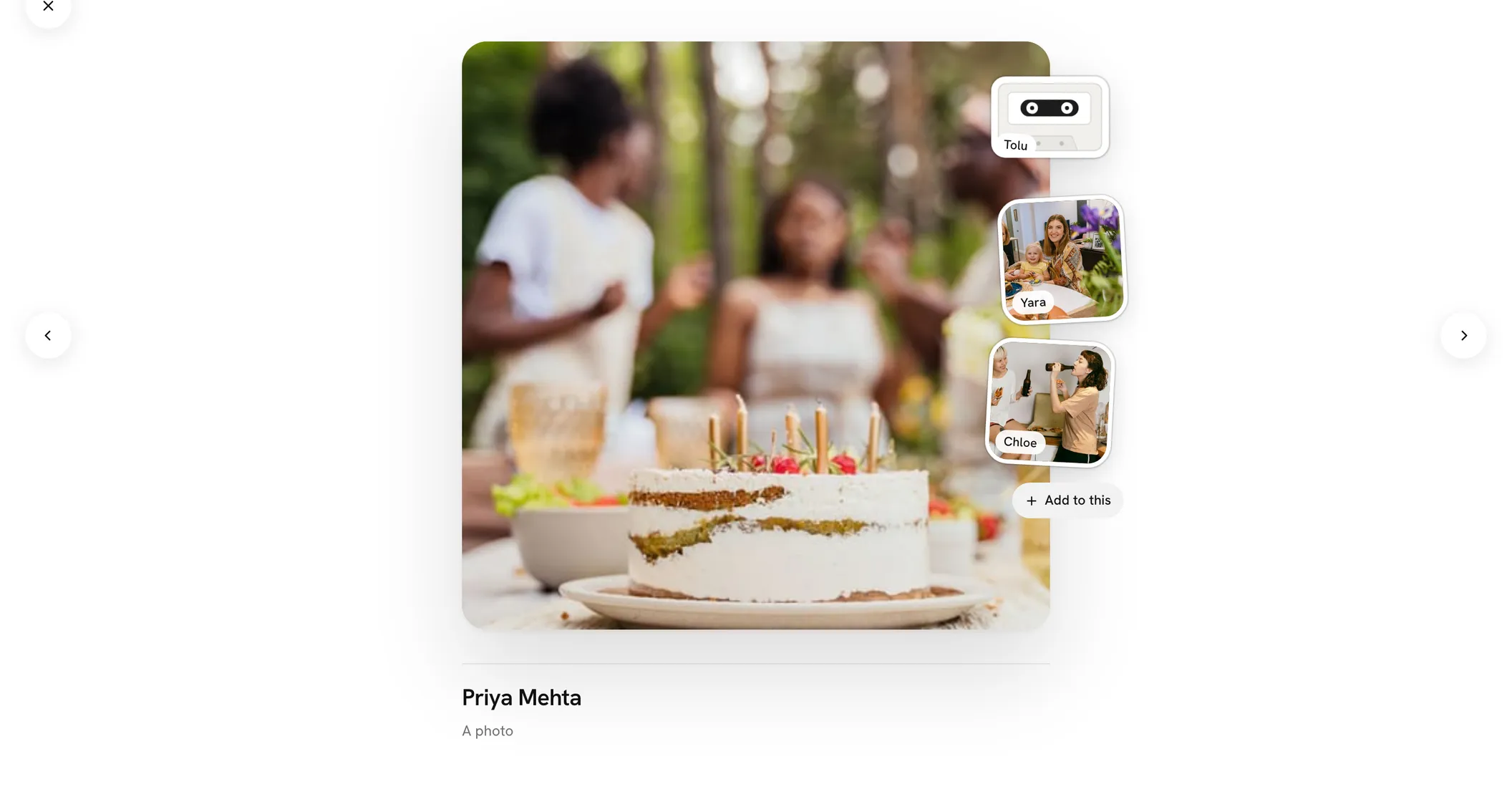
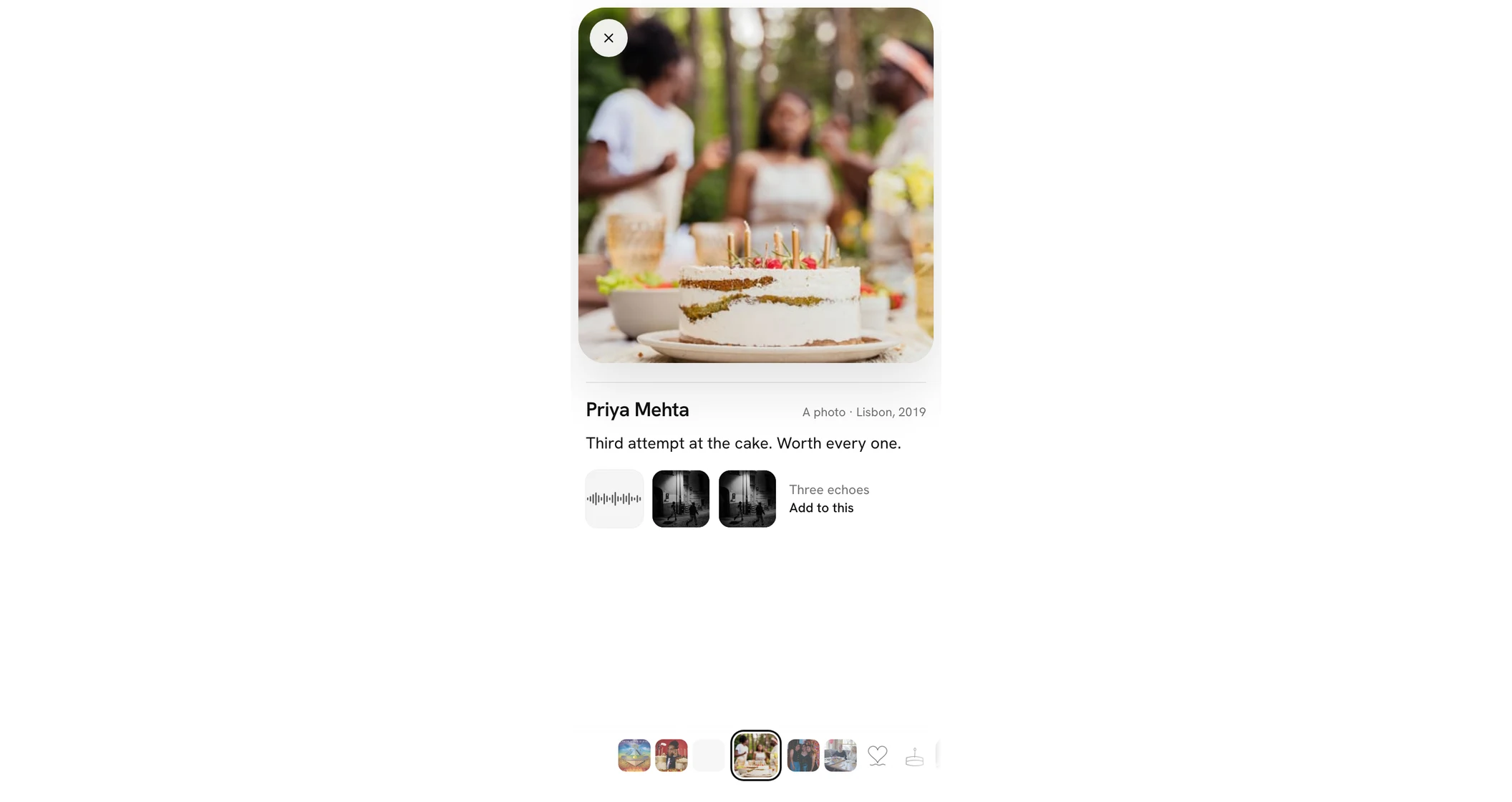
Tap or click a square to open it. The wall goes, and the square hangs alone on a white page at its own shape. Its name flies with it and becomes a label underneath: the person's full name, what it is, and where and when it is from if they said, such as A photo · Lisbon, 2019. Their line sits beside it, if they wrote one.
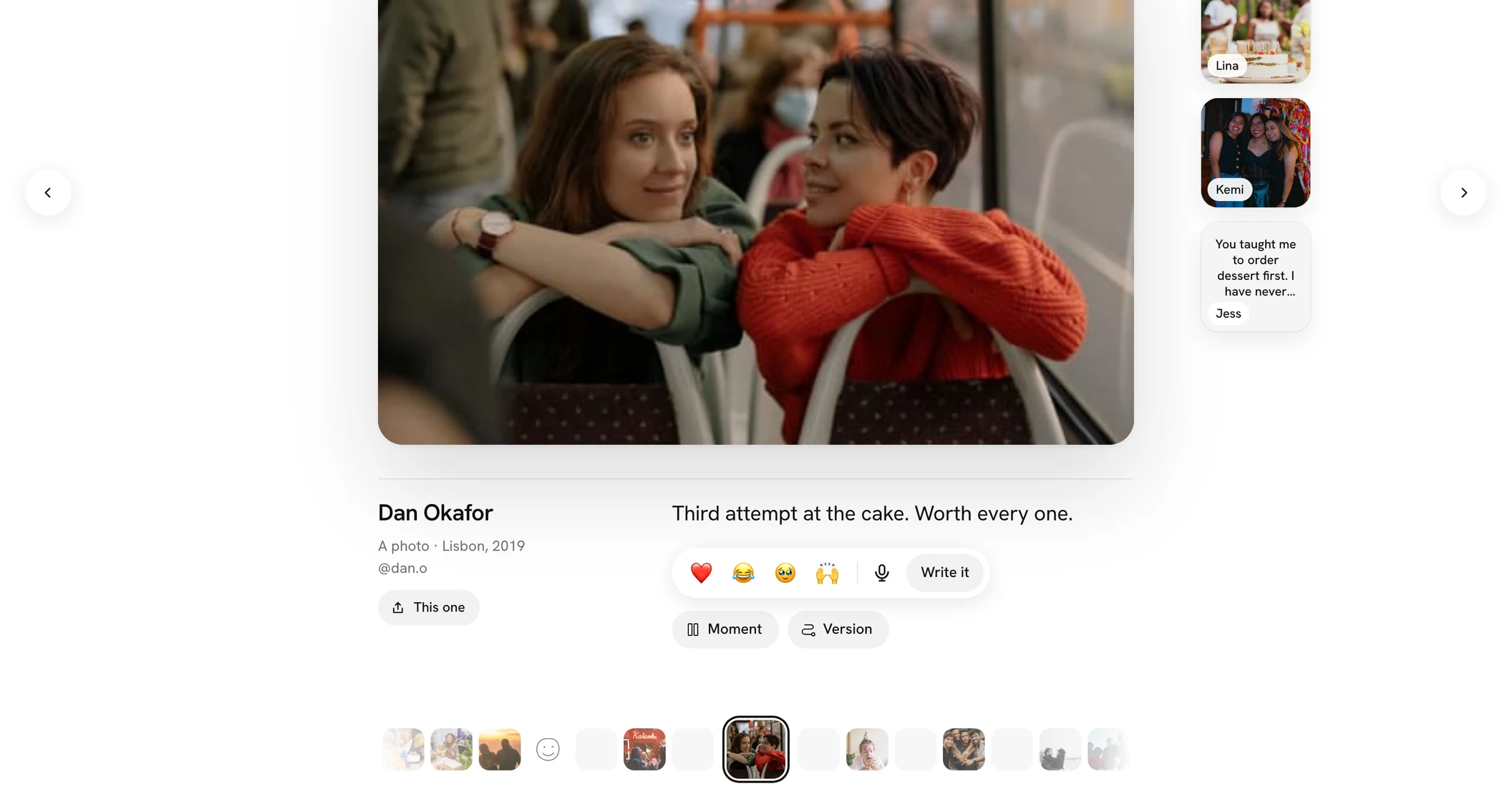
Along the bottom runs the whole wall, the square open now bigger and ringed in the middle. Press any of them to open it, or drag along them to skim. The arrows either side, or the left and right arrow keys, go to the square before or after it, in the order they were added.
On a phone it is one column you can scroll, with the square edge to edge. Swipe sideways for the next one. Close it with the cross, by pressing Escape, or on a phone by dragging it down, and it flies back to its place on the wall, with the page scrolled to it.
A voice note plays as it opens, its record's label turning. Press the card to pause, or the line under it to move through.
With a keyboard, Tab moves down the page, and Enter or Space opens the square you are on.
New squares
A square someone adds while you are looking lands at the end of the wall, and nothing above it moves. If you are scrolled further up, the Live pill says how many just arrived; press it and the page scrolls you to them.
Finding someone
The magnifier at the top opens Find. Type a name and the squares that match stay bright while the rest fade. Press Enter and the page scrolls to the first, with a ring around it; press Enter again for the next.